
Popsixle Unrestricted Onboarding
Overview
This guide walks you through the correct setup order for Popsixle to ensure your data connection is clean, compliant, and optimized from the start.
Following this order is critical—connecting platforms like Meta too early can lead to tracking issues or policy flags that are difficult to reverse later.
Step 1: Complete Your Popsixle Onboarding
Start by installing Popsixle and completing the initial onboarding flow inside your Shopify store.
Review and approve app permissions
Approve the Popsixle subscription
Click Get Started in the onboarding flow
Enable the App Embed in Shopify theme settings
Save changes in your theme
Confirm your pixel is live inside Popsixle
Important: Do not connect Meta or any ad platforms yet
Popsixle is designed to be quick to install and begin tracking, typically taking only a few minutes to get started. Once onboarding is complete, you can proceed with the setup steps below.
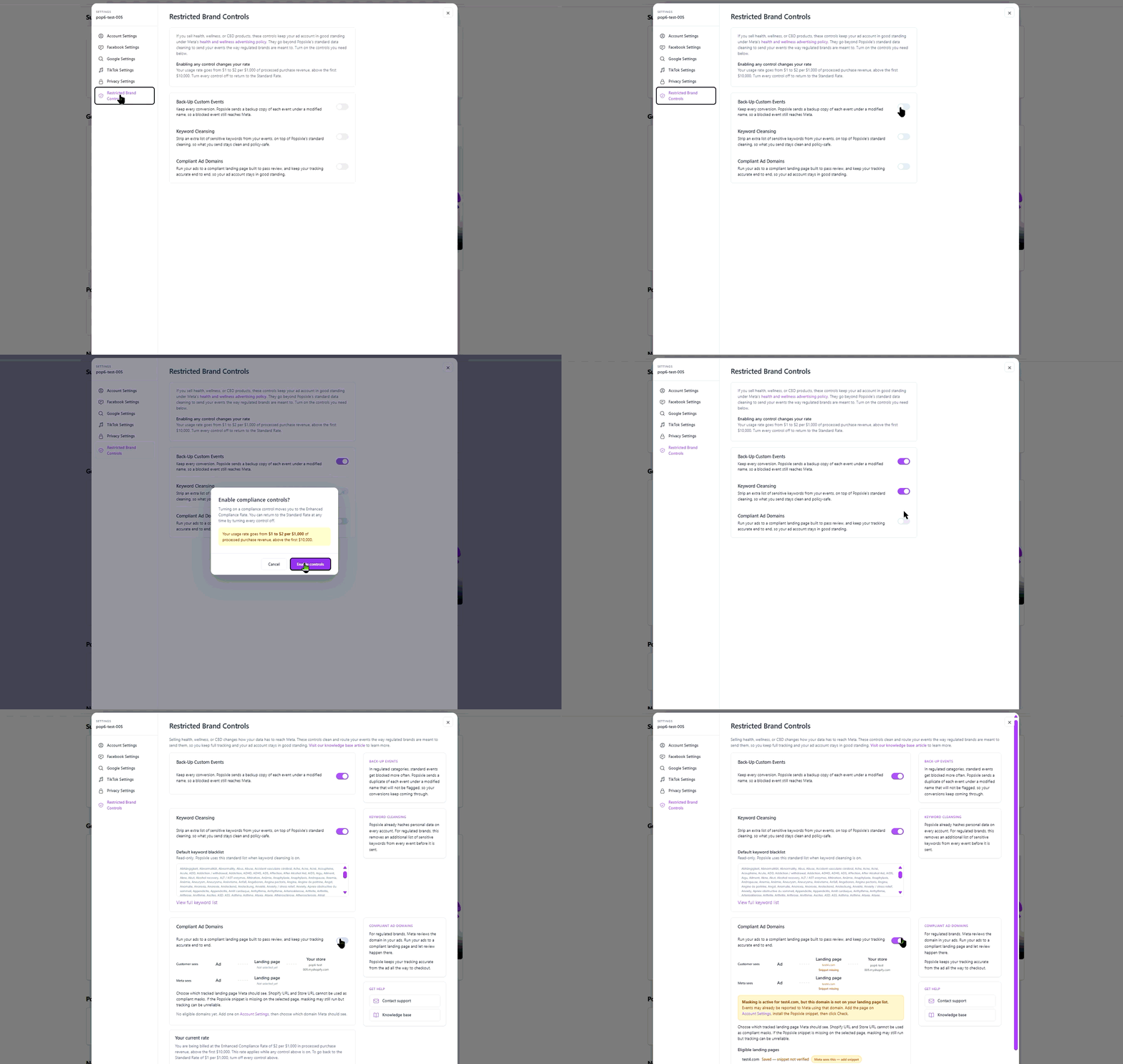
Step 2: Set Up Compliant Ads Domain feature
Important: Do not connect Meta or any ad platforms yet.
Before proceeding, your landing page must be reviewed and deemed compliant by the Popsixle team. Connecting a non-compliant page can result in your domain, pixel, or events being flagged or blocked again.
Before sending any traffic or connecting integrations, you’ll need to configure Popsixle’s Compliant Ads Domain feature (Domain Override). This ensures that all tracking and events originate from your compliant domain.
How to Set Up Compliant Ads Domain feature
Setup Steps:
Install Popsixle app (if not already installed)
Skip the data connection step in the onboarding wizard
Go to Shop Settings → Account Settings → Landing Pages (Guide here)
Add your compliant domain
Click Copy Code Snippet
Remove any existing Meta pixel code from your landing page before adding Popsixle code snippet
Paste the Popsixle snippet into the
<head>of your landing pageGo to Restricted Brand Controls
Turn on Compliant Ads Domain feature
Choose website for compliance and click USE FOR META
Confirm only the compliant domain is being used
Follow the full guide here: Compliant Ad Domains: How to Keep Meta Tracking Clean and Compliant
Once this is fully configured and verified, you can move to the next step.
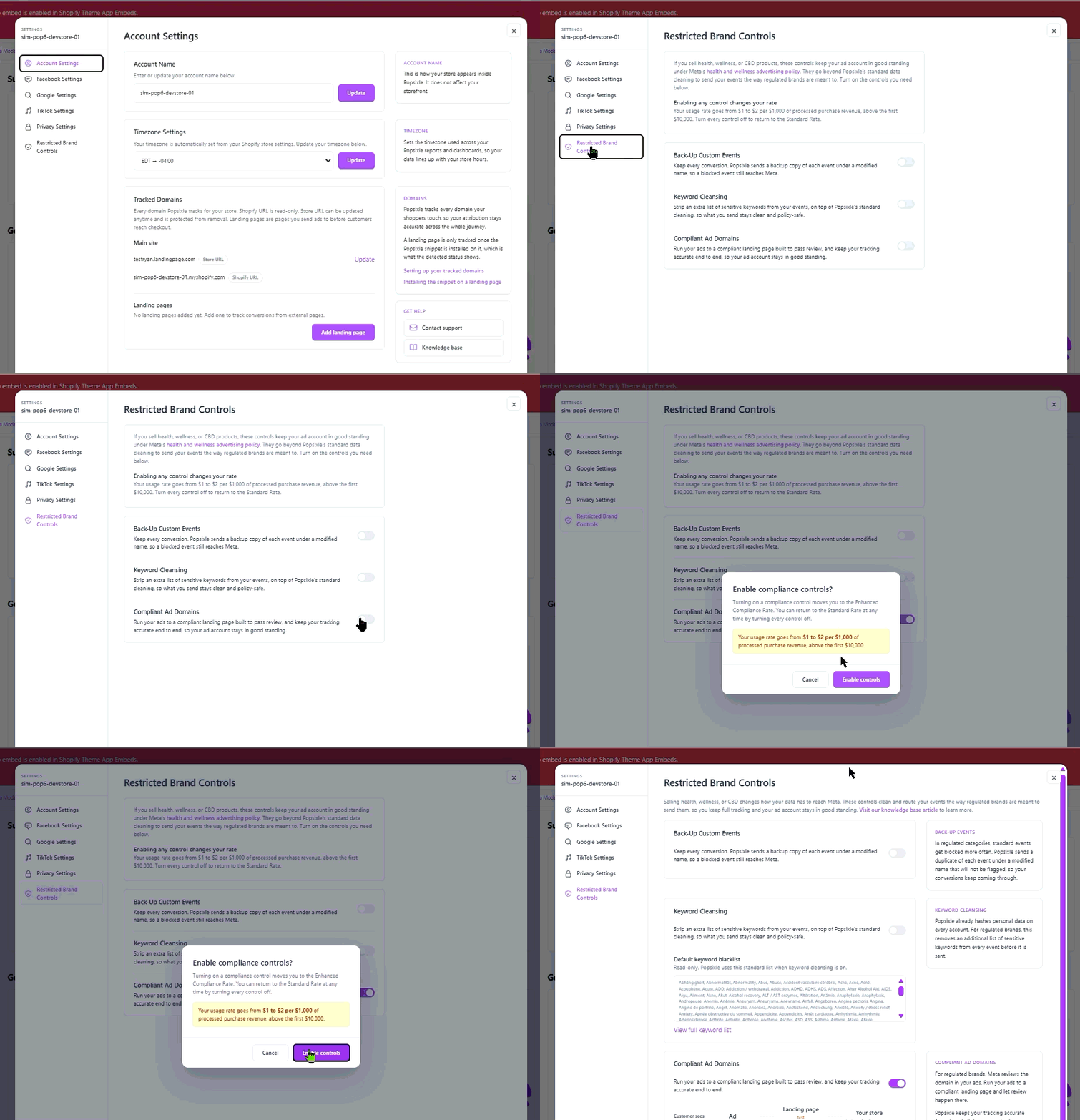
Step 3: Connect Meta (After Compliant Ads Domain feature is Live)
Only after Compliant Ads Domain feature is successfully set up should you proceed with connecting Meta.
Follow the guide here: Popsixle Step-by-Step Setup Guide
Key Notes:
Use a clean/new Meta Pixel, when possible, for Unrestricted setup.
Ensure your landing page has been reviewed and approved as compliant by the Popsixle team before connecting Meta
Ensure domain masking is active before sending traffic
Verify events inside Meta Events Manager after setup
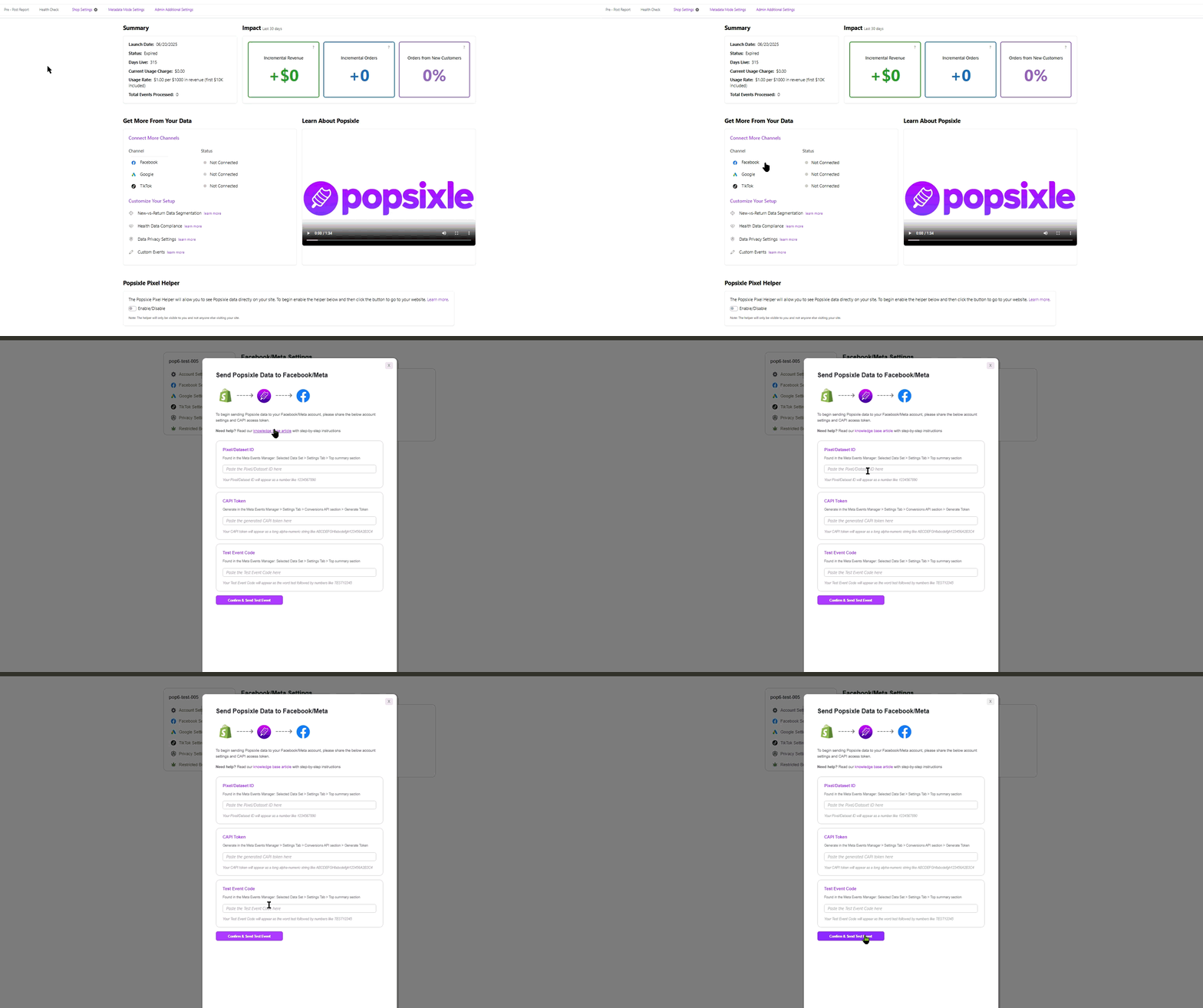
Connect Meta
Go to Data Connections → Meta (Facebook)
Enter your Pixel ID
Enter your CAPI Access Token
Enter your Test Event Code
Click Confirm & Send Test Event to save your settings.
Frequently Asked Questions
Why do I need to set up Compliant Ads Domain feature before connecting Meta?
Meta evaluates the website you send traffic to and the data your pixel shares, so Popsixle recommends getting the compliant domain path in place first. The setup guides also note that you should verify the domain in Meta Business Manager and use a clean domain before sending traffic.
Read more: Website + Pixel Compliance | Popsixle Unrestricted
What's a common mistake being made when setting up Popsixle Unrestricted?
Using a landing page that has not been reviewed or approved for compliance before connecting to Meta
Why use a new Meta Pixel?
A new pixel helps refresh the setup and avoid carrying over flagged sites or blocked URLs from prior data sources.
Read more: Restricted Brands Popsixle Checklist to Prevent Flags and Blocks
What are the most common compliance mistakes?
Common issues include banned or overly explicit keywords, consumption imagery, medical or guaranteed claims, and sending traffic directly to the main store instead of a clean landing page. The guides also call out metadata, page titles, images, and pixel payloads as places Meta can detect risk.
Read more: Popsixle Post‑Installation Best Practices for Restricted Brands
How do I know if Compliant Ads Domain feature is set up correctly?
In Popsixle, Domain Override should be ON and the compliant landing page should be added. In the Pixel Helper, the masked domain should appear as the event source URL, and you should see browser and server events marked as successful.
Read more: Restricted Brands Popsixle Checklist to Prevent Flags and Blocks
Contact Us
Have questions or concerns? Reach out to the Popsixle via email or through the live chat on our site and a member of our team will get back to you within one business day.