
Restricted Brands Popsixle Checklist to Prevent Flags and Blocks
Restricted brands face stricter ad policies and tracking limitations on Meta. This checklist ensures your setup meets Meta’s advertising rules, Popsixle’s event accuracy standards, and privacy compliance — reducing the risk of ad disapprovals, blocked events, or inaccurate reporting.
Popsixle Dashboard and Landing Page Checks
In the Popsixle Dashboard Settings > Restricted Brand Controls > Domain Override, make sure that the compliant landing page is added and the Domain Masking/Override feature is turned ON

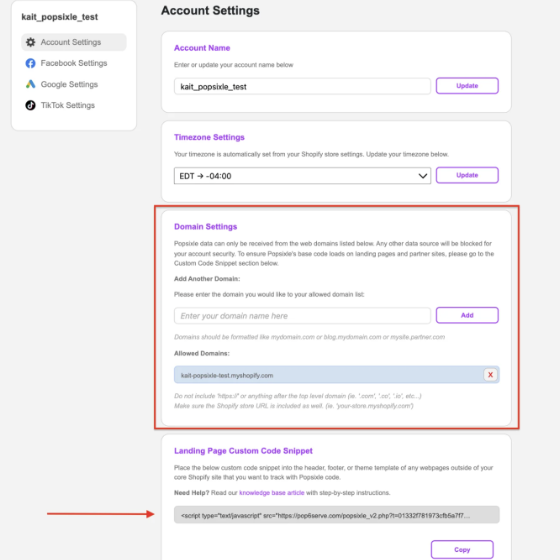
In the Popsixle Dashboard Settings > Account Settings > Domains, check if the compliant landing page, Main Website, Main Shopify URL is added.
If any of these are not added, enter your URL (you may notice the link will be shortened or lose a backslash, etc.) in the box then Add
Go to your compliant landing page site and right click then Inspect your Console, you should see a Popsixle token loaded and shows your Main site or Shopify URL

If there is no Popsixle Token loaded in your Console, go to your Popsixle Dashboard Settings > Account Settings > Landing Page Custom Code Snippet then Copy the custom code and Paste this either directly in the body of the page or via GTM or CMS template you are using.
Note: There are a few sites that have JavaScript/console.logs disabled, so our code doesn’t show in the console the same way. In the networking tab you would likely still see the code and events firing.
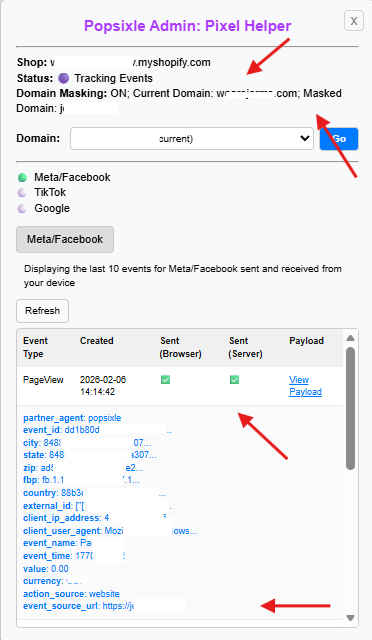
In the Popsixle Dashboard Home Page, look for the Popsixle Pixel Helper and press Open to check if Domain Masking is ON, and your main website is firing the compliant landing page.

In the Popsixle Admin: Pixel Helper, Domain Masking should be ON, with the Current Domain as your main site and Masked Domain is the one added in your Domain Override/Masking settings.
Click View Payload, then check if the event_source_url is firing the Masked Domain site. Also, look for a ✅ mark in your Browser and Server Sent.
Meta Events Manager Checks
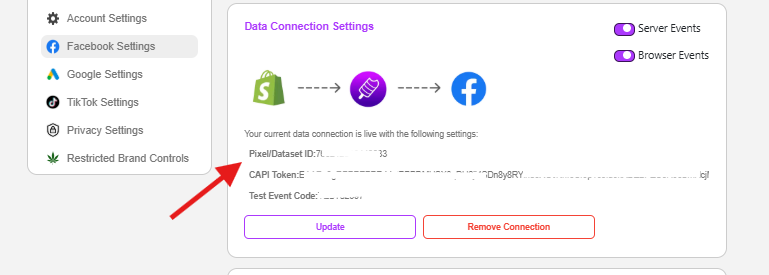
In the Events Manager and Popsixle Settings, make sure and confirm that the pixel you are using is new and is the one connected to Popsixle. Ensure that the Pixel/Dataset ID in your settings the same as the one you are using.
Now, in the Events Manager Overview, you can see Event Activity. On the right corner, only the compliant landing page is to be added. Adding your main site or other sites may cause flags
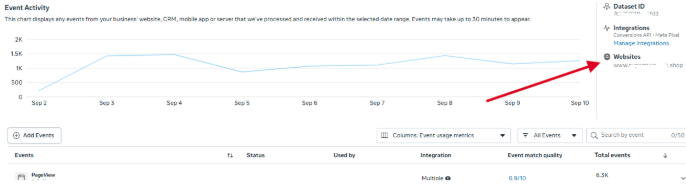
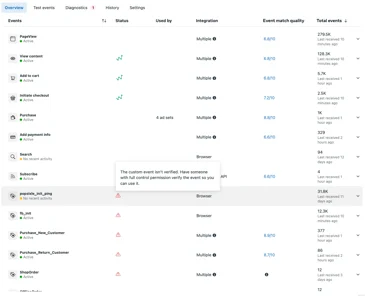
Below the Events Activity is the Events Section where you can see all the events being sent to Meta. Check for any red triangle-shaped alerts next to your events.
When you hover your cursor over these alerts, you'll see the direction: "The custom event isn’t verified. Have someone with full control permission verify the event so you can use it."
You (or someone on your team with full control permissions) will need to click the red alerts, then click the "Manage Status" button that follows to accept/verify the event.
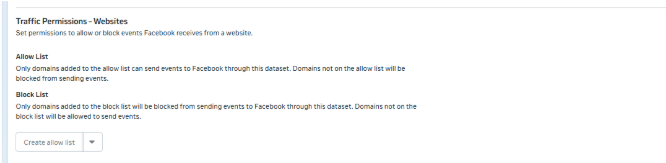
In the Events Manager > Settings, go to Traffic Permissions - Websites and check for any allow/block list
If there's no list created, there's no problem and no action needed (do not "Create" a list!)
If there IS an Allow List, make sure these 3 domains are included in the list (or click "Edit" to add the domains):
your site's own Shopify url and Main website
Compliant landing page
If there's no Allow List but there is a Block List, check to ensure the domains above are NOT added to the list. Domains added to the block list will be blocked from sending events to Meta.
Lastly, in Events Manager > Diagnostics, check if there are flags related to Meta’s Restricted Brands
IF YES, reach out to Popsixle
IF NO, there are no issues and you’re good to go!
FAQ
Why should I add the compliant landing page in the Domain Settings and Landing Page Custom Code Snippet pasted in the site?
This is so that we're able to track the Landing Page
Why use a new Meta Pixel?
Using a new Pixel would refresh and remove any flagged sites and blocked URLs
Why should my compliant landing page be the only website in the Pixel/Dataset?
Data from all your domains and landing pages will be consolidated under that domain before it’s sent back to Meta. Adding another data source (especially your Main flagged site) may cause flags.
Not seeing a Popsixle Token in the Console Log in your website?
Make sure to add the custom code snippet from the Account Settings in the dashboard.
Check your App Embed settings in Shopify
Contact Us
Reach out to the Popsixle via email or through the live chat on our site and a member of our team will get back to you within one business day.