
Meta Events Manager Best Practices: Popsixle Events & Domain List
Once you have successfully connected Popsixle to Meta, you'll need to ensure your pixel is not blocking Popsixle's events.
These steps to verify Popsixle events and update a pre-existing Allow/Block list are especially important for accounts making use of Popsixle's Health Settings (Information for Restricted Brands) and our new vs. return customer optimization feature.
Go into Events Manager to run these two checks, and make updates as needed
A. Verify Popsixle's events
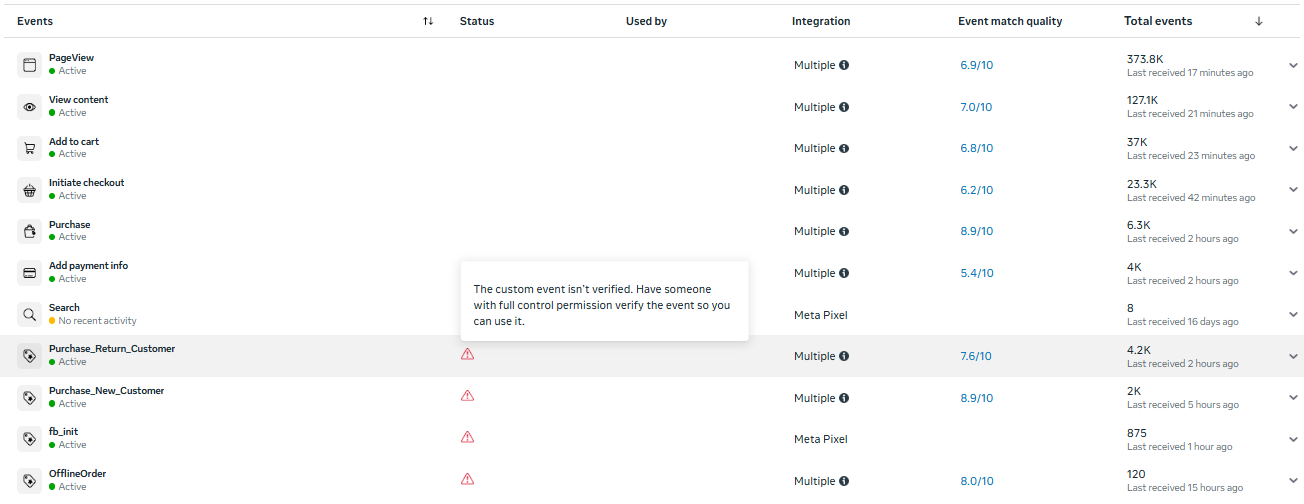
From Events Manager, go to the Overview page to see all the events sent to Meta
Check for any red triangle-shaped alerts next to your events. When you hover your cursor over these alerts, you'll see the direction: "The custom event isn’t verified. Have someone with full control permission verify the event so you can use it."
You (or someone on your team will full control permission) will need to click the red alerts, then click the "Manage Status" button that follows to accept/verify the event.
Alternative: You can also confirm or accept these events through Settings → Manage Event Blocking → Review

What events to accept
B. Check (and update) an Allow list
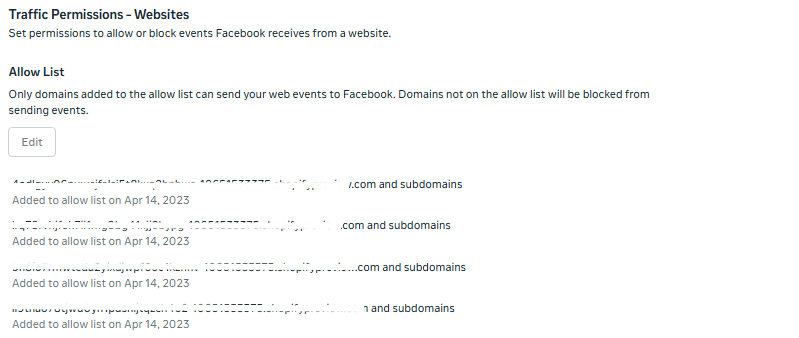
From Events Manager, go to the Settings page and scroll down to see if your account has created an "Allow List"
If there's no list created, there's no problem and no action needed (do not "Create" a new list!)
If there IS an Allow List, make sure these 2 domains are included in the list (or click "Edit" to add the domains):
your site's own Shopify url
Any landing page or subdomain added
If there's no Allow List but there is a Block List, check to ensure the two domains above are NOT added to the list. Domains added to the block list will be blocked from sending events to Facebook. Domains not on the block list will be allowed to send events.
Contact Us
Have questions or concerns? Reach out to the Popsixle via email or through the live chat on our site and a member of our team will get back to you within one business day.