
Advanced Setup: External Landing Pages
Overview
This part of setup only applies if:
Your ads send traffic to pages outside your main Shopify store domain
Your brand operates in a restricted category and uses Popsixle’s domain masking feature
You run seasonal or one-off promotions on custom landing pages
If none of these apply to you, you're all set and there is no need to complete this step.
Add External Landing Pages
If your ads direct traffic to landing pages outside your primary Shopify domain or if you're a restricted brand, you'll need to complete this additional step to ensure tracking works properly.
From your dashboard:
Go to Shop Settings > Account Settings > Domain Settings
Under Add Landing Page, enter the external domain
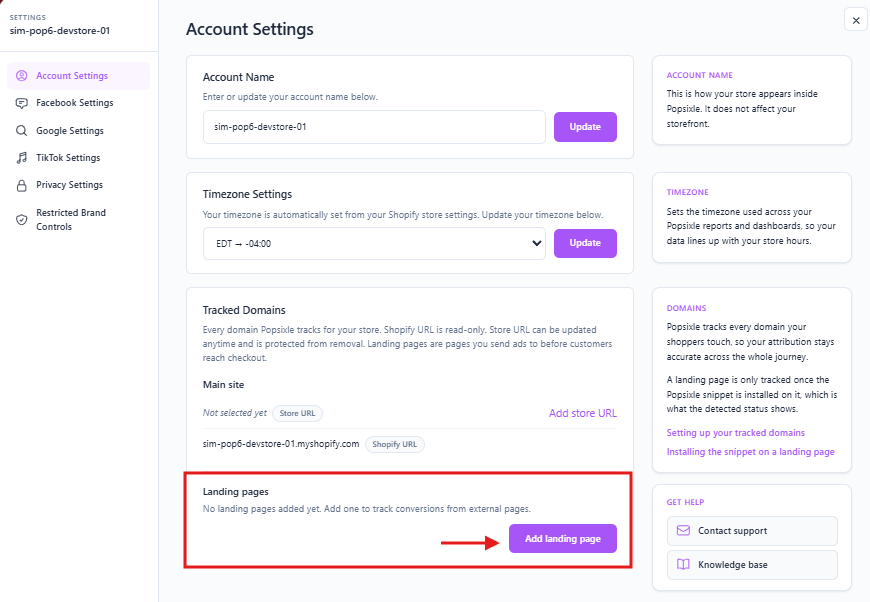
Add your Landing page URL
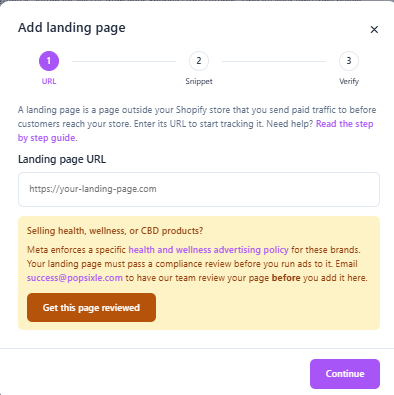
Note: If your account features a health, wellness, or CBD product, make sure to let Popsixle run a compliance review before running ads. Send us a message at success@popsixle.com
Copy the Landing Page Custom Code Snippet and add the code to your landing page using one of the following methods:
Paste it directly into the HTML
Embed it through your CMS template
Install it via Google Tag Manager (GTM) Guide here
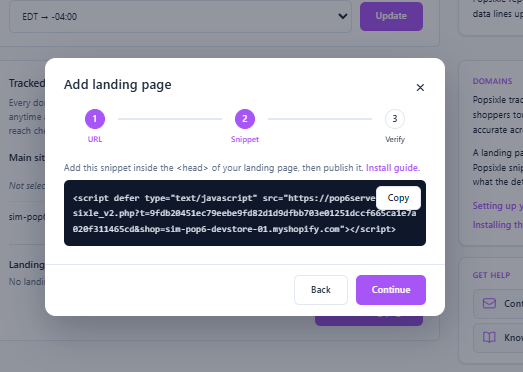
After pressing Continue, it will then detect whether or not the snippet was added to your landing page.
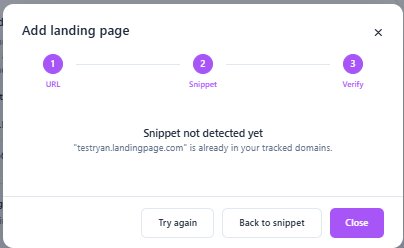
Self-Check: How to Confirm the Popsixle Code Snippet Was Added to Your Landing Page
After completing the installation, it's a good idea to verify that the Popsixle code snippet is loading correctly before moving on.
1. Confirm the Landing Page Was Added Successfully
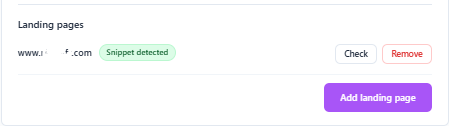
From your Popsixle Dashboard, navigate to your Landing Pages section.
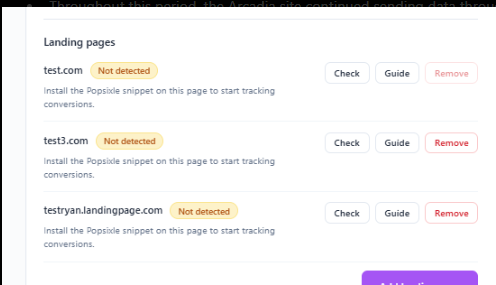
Each landing page will display one of two statuses:
✅ Snippet detected
This means Popsixle successfully found the code snippet on your landing page and tracking is active.
No further action is required.
⚠️ Not detected
This means Popsixle could not find the code snippet on that landing page.
Common causes include:
The code snippet hasn't been installed yet.
The snippet was installed on a different domain or subdomain.
The page hasn't been published yet.
The snippet is being blocked or isn't loading correctly.
Select Check to run another scan after making changes.
2. Verify the Popsixle Token Is Present
Open your landing page or subdomain and right-click anywhere on the page and select Inspect > Open the Console tab > Search for or look for the Popsixle token. Look for a message similar to:
🎈 Popsixle loaded for yourstore.myshopify.com (v3.x.x)
Token active until 2030-xx-xx
If you see this message, your Popsixle token has loaded successfully and the code snippet is active.
If You Don't See the Token
If the token doesn't appear in the Console:
Confirm you've installed the correct Popsixle code snippet.
Make sure the snippet is loading on the landing page you're testing.
Refresh the page after publishing any changes.
If you're using a headless site or Google Tag Manager, confirm the tag has been published and is firing correctly.
If the issue persists, contact the Popsixle Support team and we'll be happy to help verify your implementation.
Contact Us
Have questions or need help? Reach out via live chat (during business hours) or email us at success@popsixle.com.landing