
How to setup GTM custom triggers
This guide walks you through how to send custom events to Popsixle using GTM.
Before starting, make sure the Popsixle base code is installed and loads on all pages. If not, check out Step 2 of this guide.
📋 Step 1: Decide What Events to Track
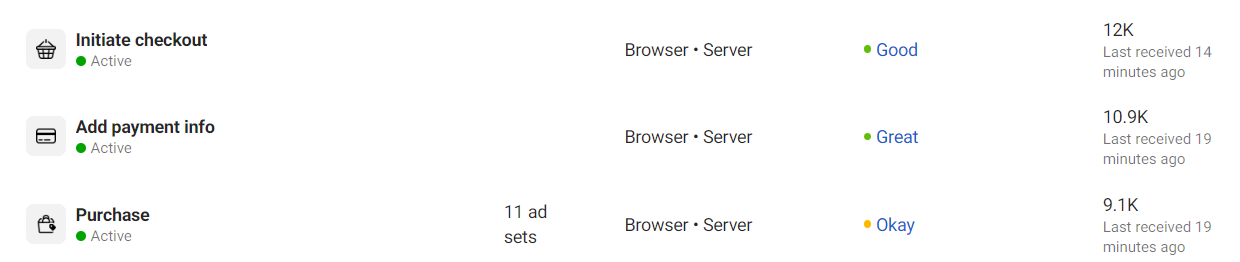
Check your Meta Events Manager to see which events are already used in your ad campaigns. For each event, you’ll create a GTM tag with a custom HTML snippet and a trigger. In the below example, Purchase is being used in 11 ad sets.
We recommend planning your setup in a spreadsheet. Here’s a sample format:
Event Type | Facebook API Event Type | Event Value | Trigger | GTM trigger |
Purchase | Purchase | {dynamic} | Land on thank you page after purchase | URL = “thank-you” |
Add to cart | AddToCart | 10.00 | Click “Add to Cart” button | Button with id “add-cart-h123ss” is clicked |
🧩 Step 2: Create GTM Tags
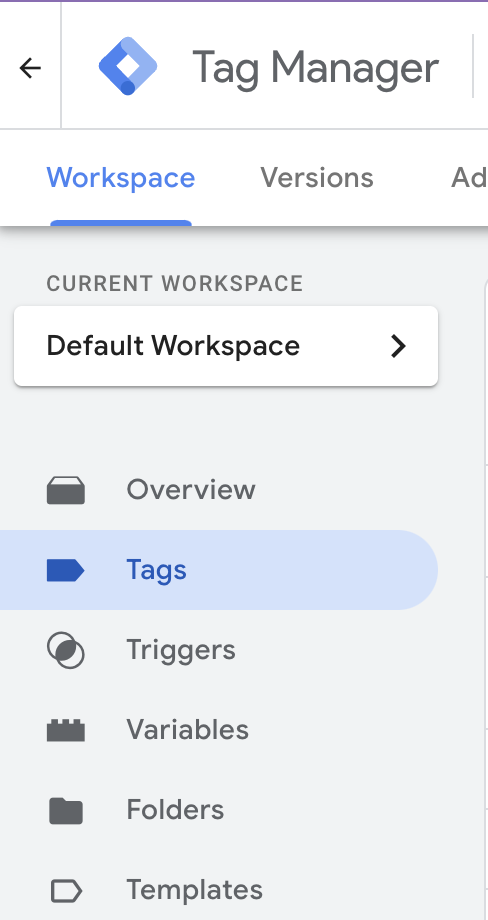
Log into GTM and go to Tags.
Click New and name your tag (e.g.,
popsixle - AddToCart).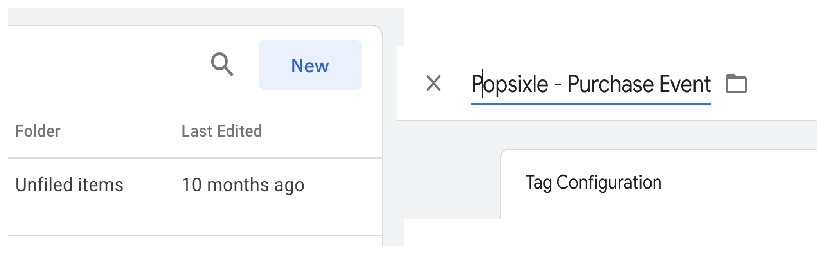
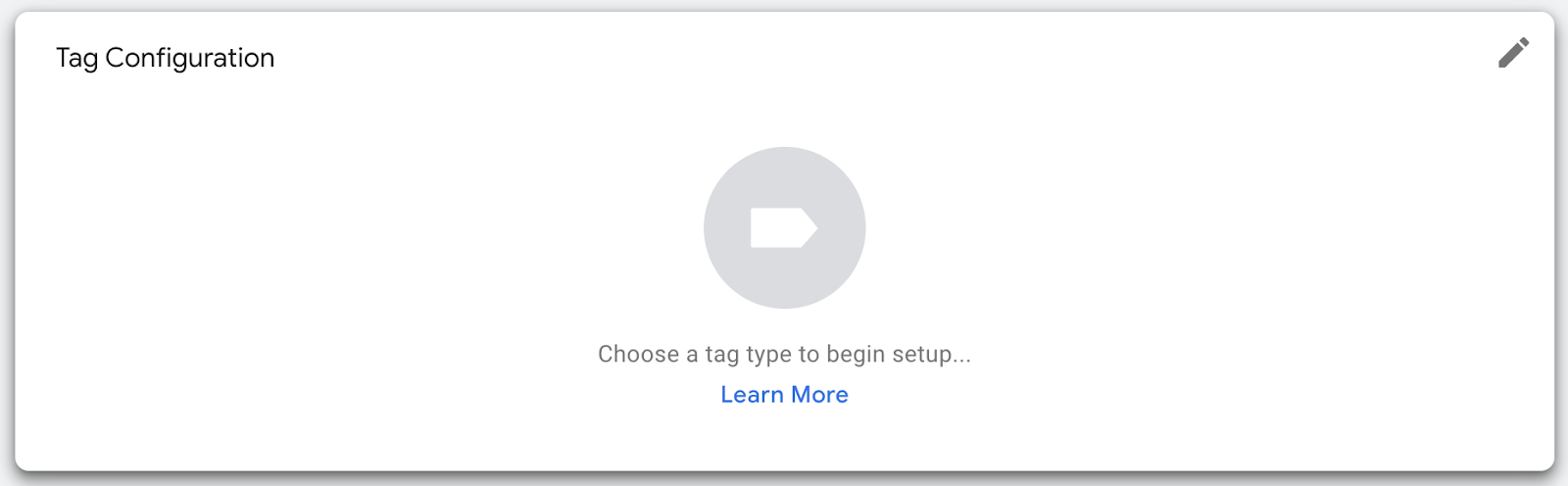
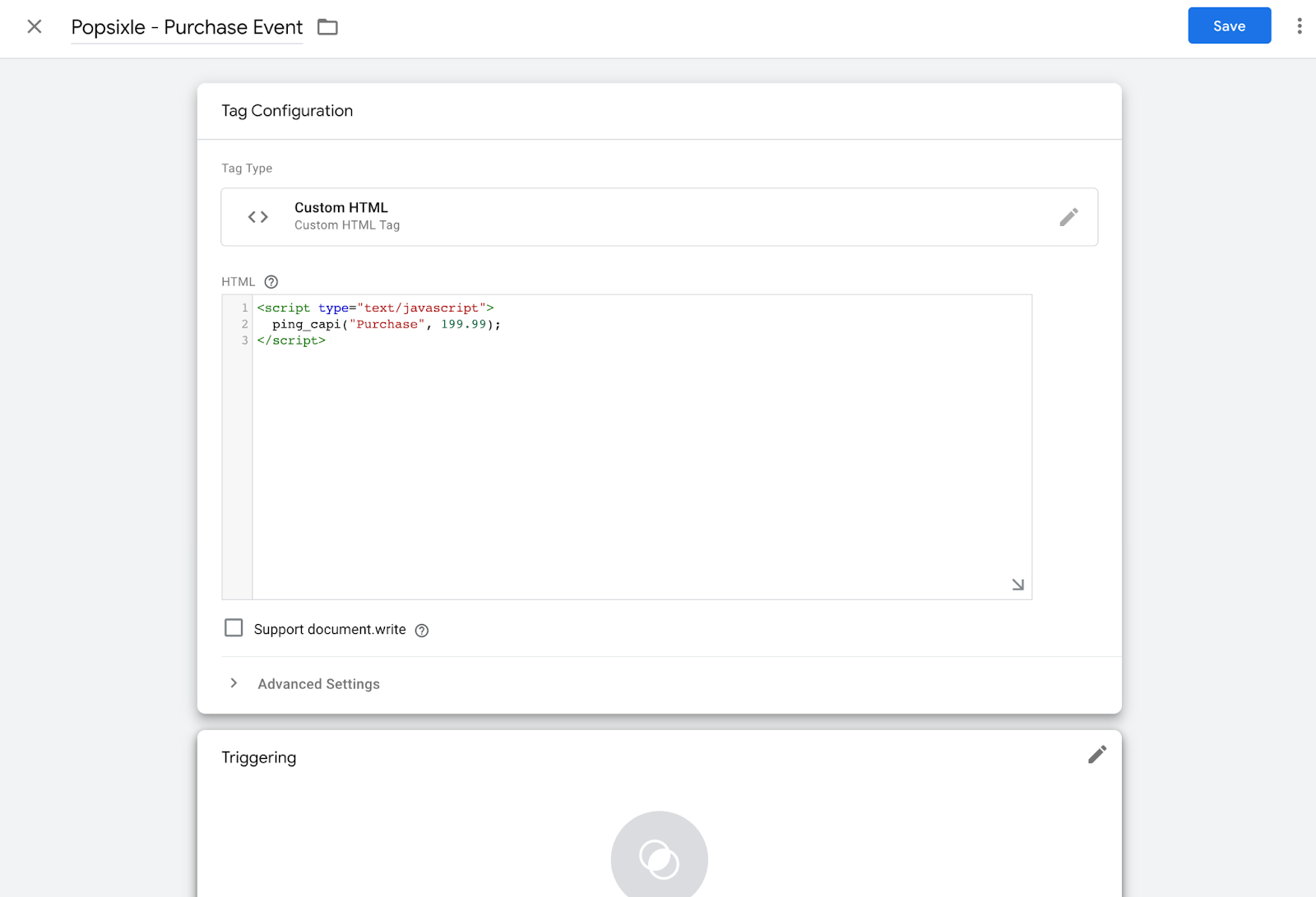
In Tag Configuration, click the edit pencil icon then choose Custom HTML as tag type.
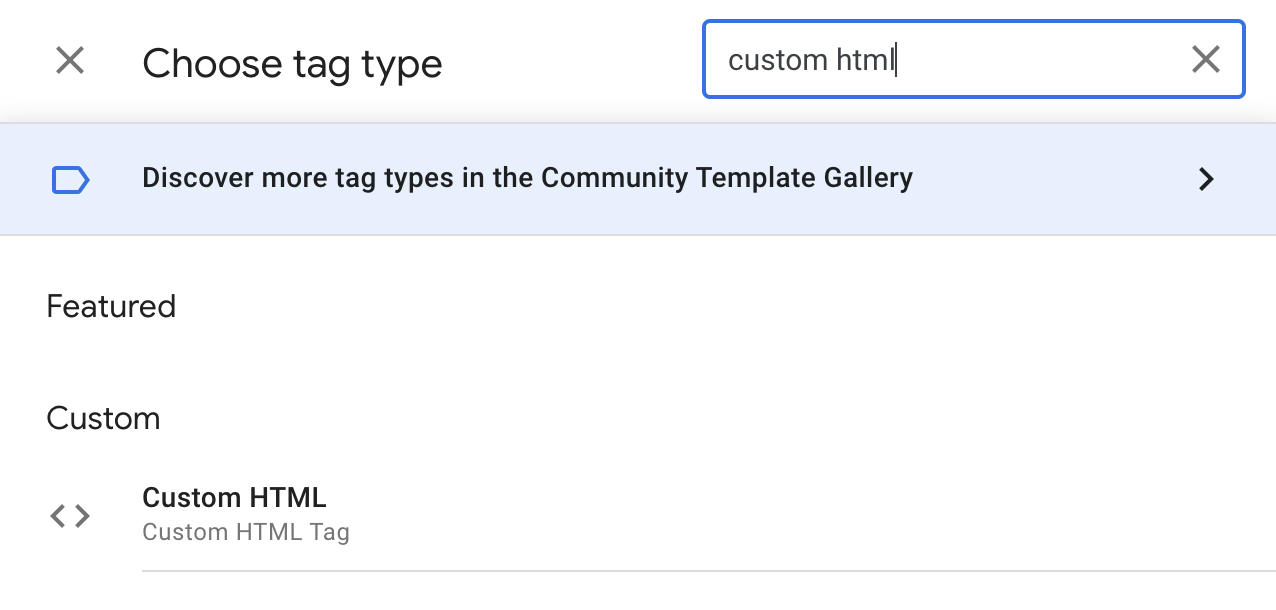
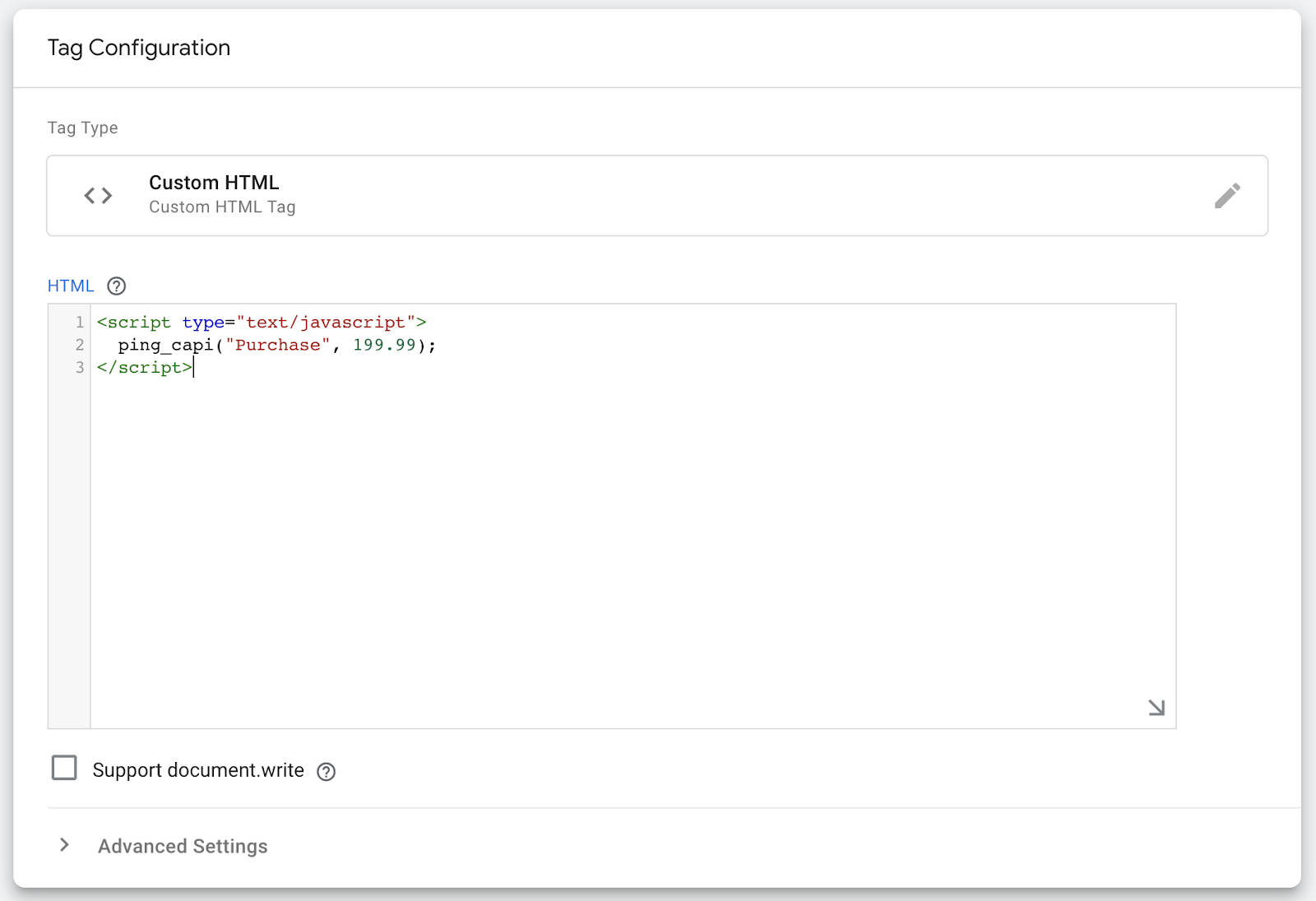
Paste the following code within the HTML section and update the event name and value:
<script type="text/javascript">
  p6_post_event("AddToCart", 10.00);
</script>
Note: Event and value are what needs to be updated/configured.
The p6_post_event() function expects two separate values to be passed, separated by a comma. The first value is the Facebook event type. It must be wrapped in quotation marks and must use one of the following exact spellings:
PageView
ViewContent
AddToCart
InitiateCheckout
Purchase
Lead
Subscribe
Search
CompleteRegistration
The second value after the comma should be a dollar amount associated with the event. Note that the event values should be numbers only, with two decimal places. Here are some examples:
AddToCart event with a fixed value of $0.00.
p6_post_event("AddToCart", 0.00);AddToCart event with a fixed value of $5.00.
p6_post_event("AddToCart", 5.00);Purchase event with a fixed value of $125.00.
p6_post_event("Purchase", 125.00);Purchase event with dynamic value, pulled from a variable called purchase-amount.
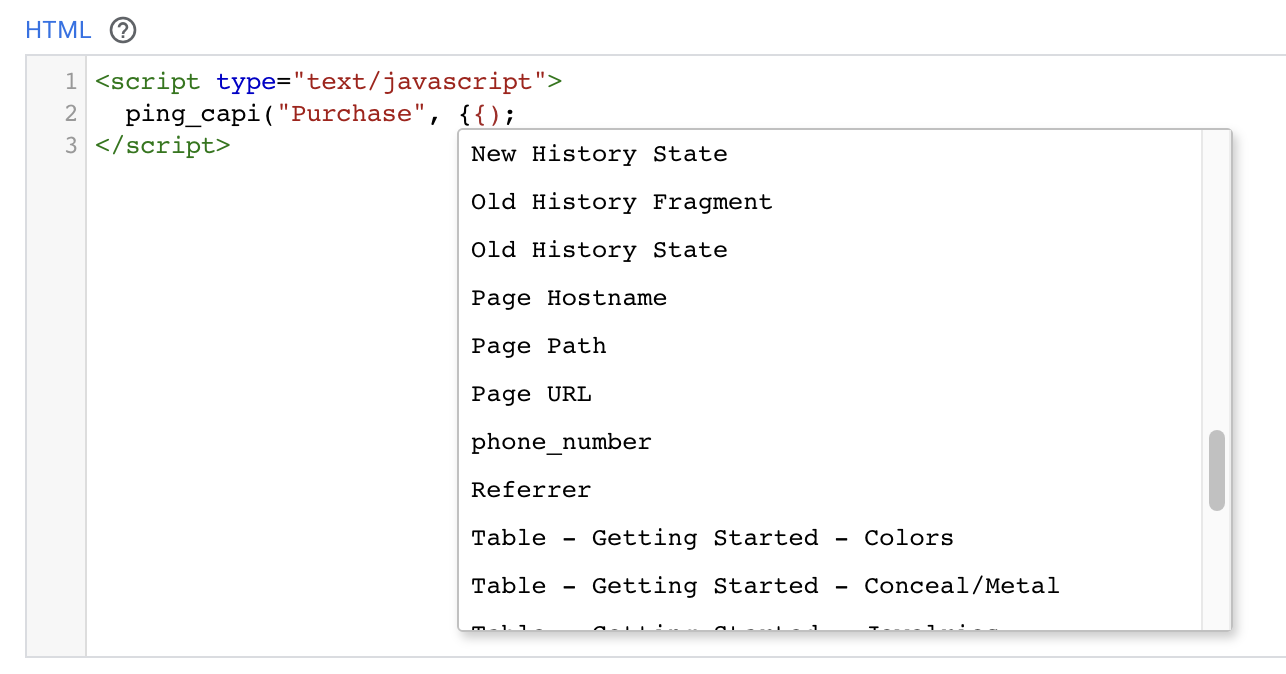
p6_post_event("Purchase", {{purchase-amount}});Wrap the dynamic variable name with double curly brackets. As soon as you type the opening {{ for a dynamic value, GTM will show a drop down with the available, existing dynamic values within your account.
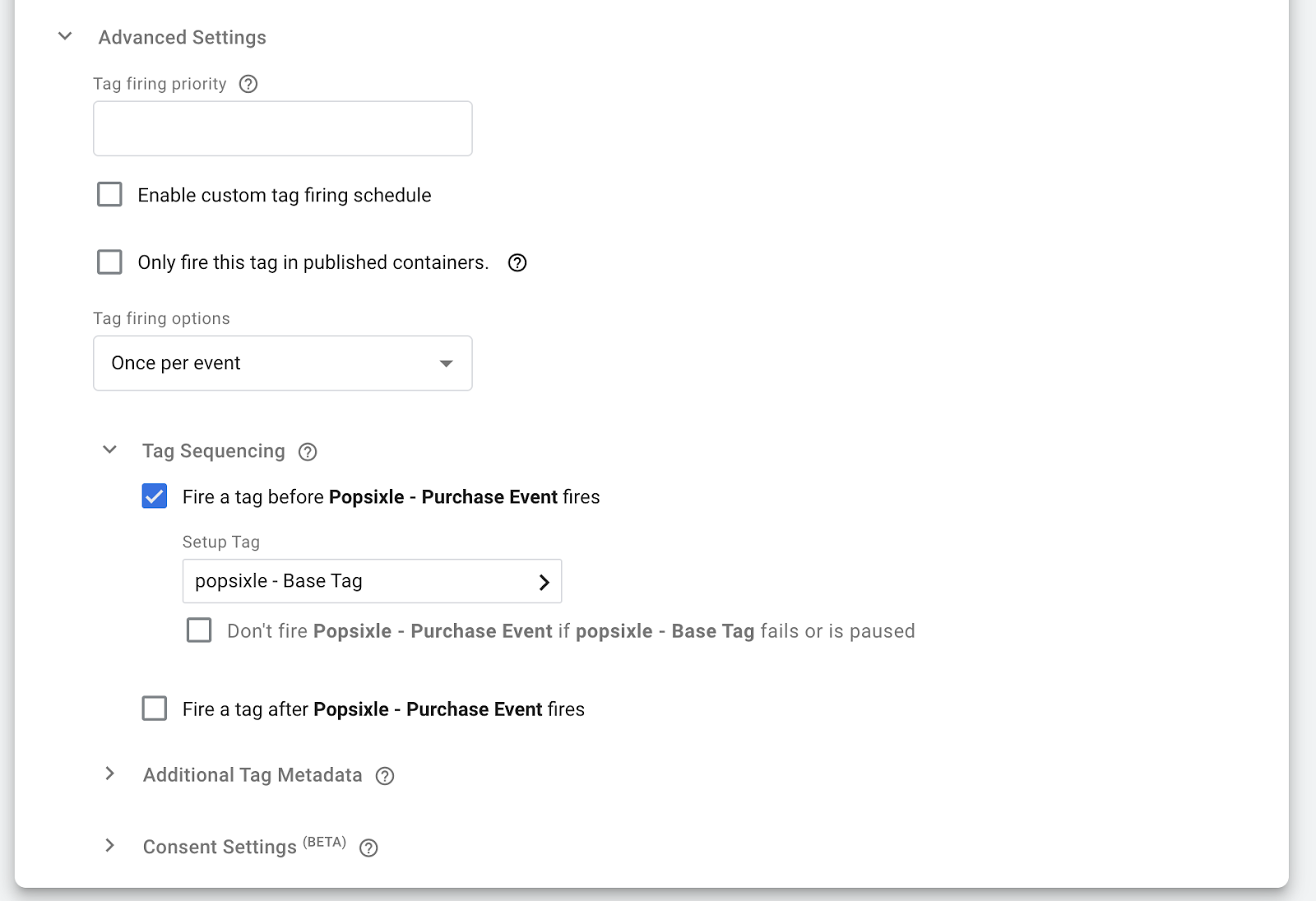
If later on you are debugging the event and it’s not firing correctly, check advanced settings at the bottom of the Tag Configuration/custom html area. Use Tag Sequencing to ensure your Popsixle base-tag fires before your custom event.
🎯 Step 3: Set Up Triggers
In the same tag, go to Triggering and either select an existing trigger or create a new one. Click the edit pencil icon in the top right corner.
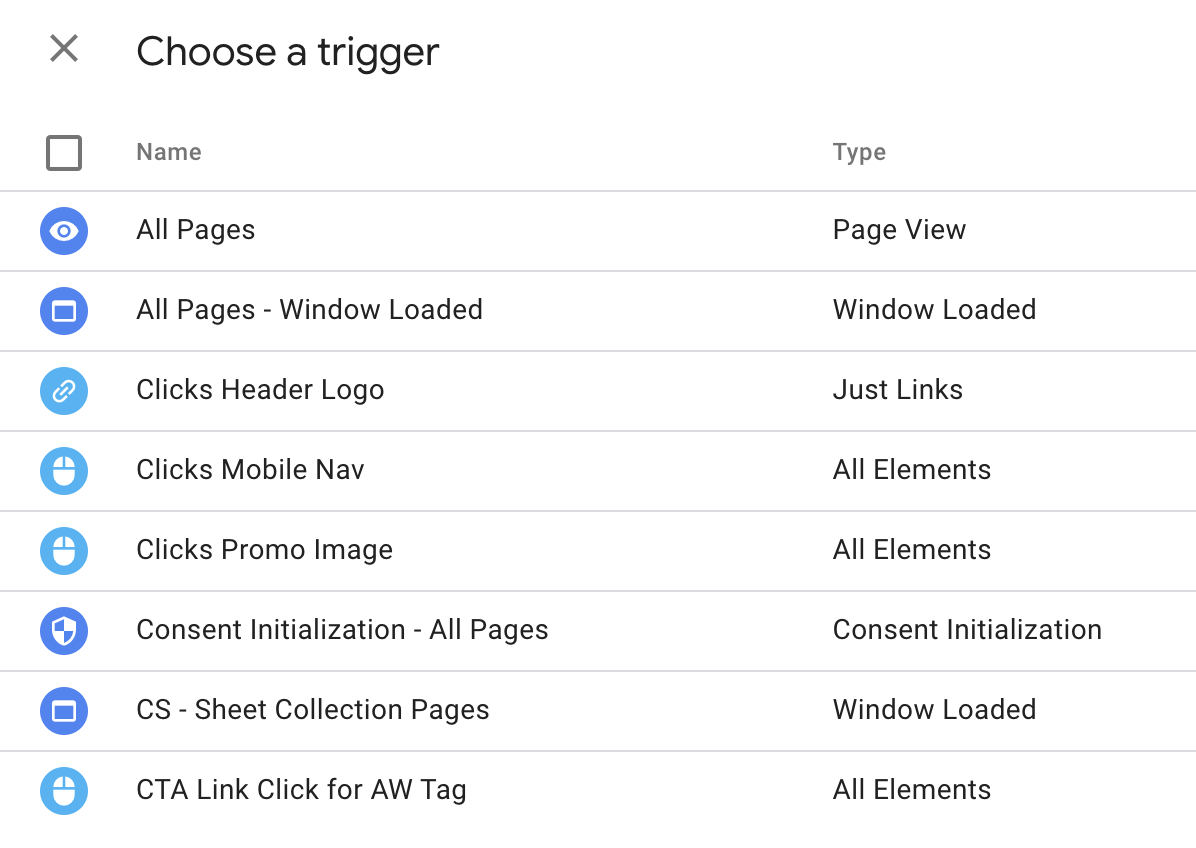
GTM will now list all the existing triggers that have already been configured in your account. To use an existing trigger, simply select it from the list.
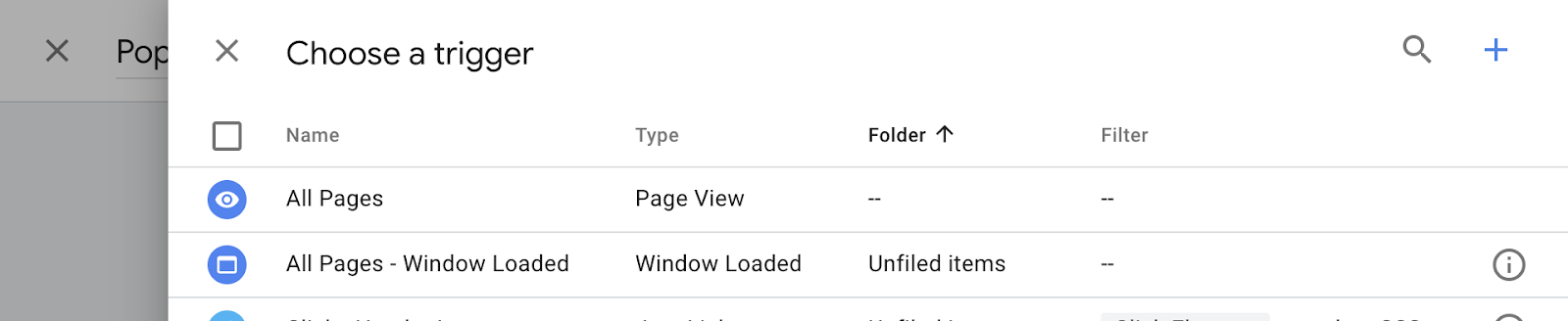
To create a new trigger, click the + icon in the top right corner.
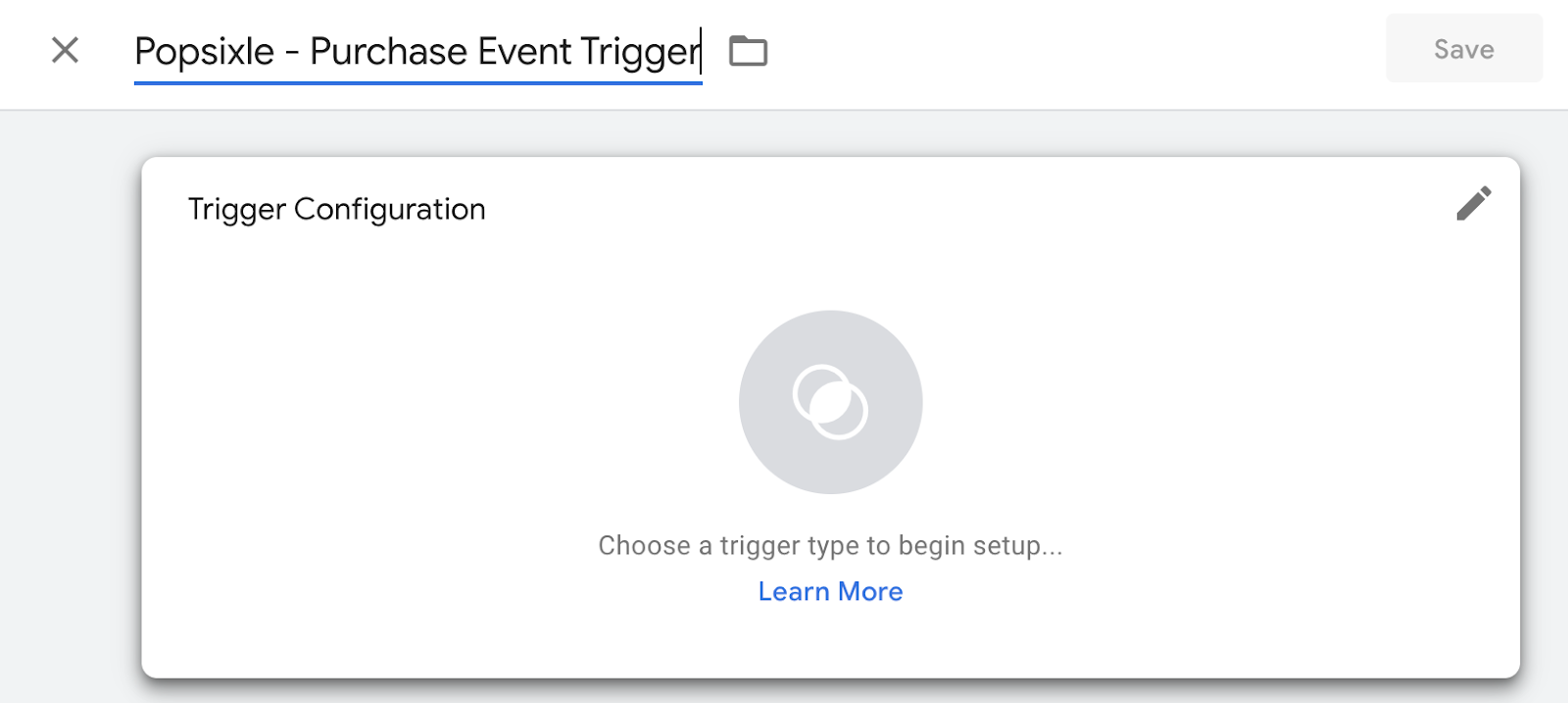
Like any other trigger in GTM, you’ll need to give the trigger a name, and then configure what actions make the trigger fire. After entering a trigger name, click the edit pencil icon to configure the trigger.
You can reference other GTM tutorials for more info on how to create triggers. The most common triggers are either URL matched, button-click matched, or a combination of the two. For URL matches, select the Page View trigger type:
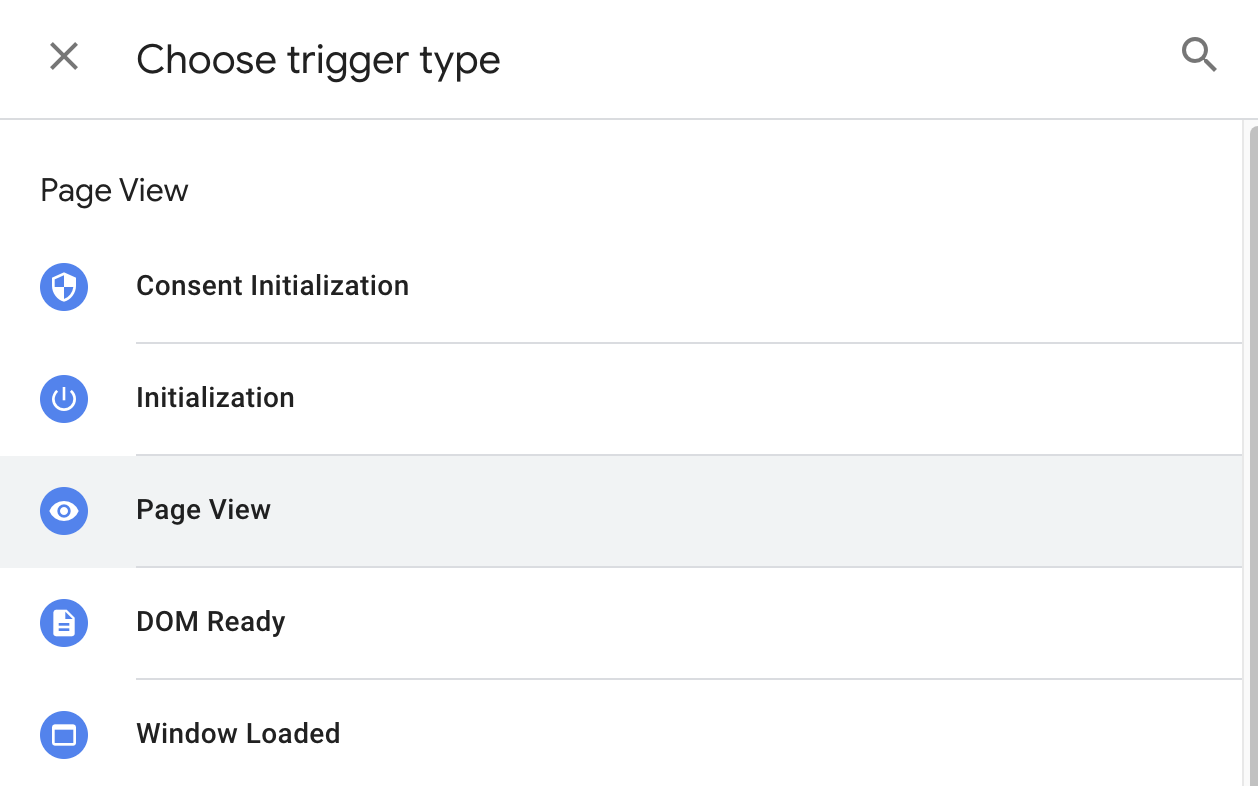
Then use the settings to configure what URL text needs to be matched for the trigger to fire. Here’s an example for a trigger that fires on any webpage with the URL containing “thank-you”.
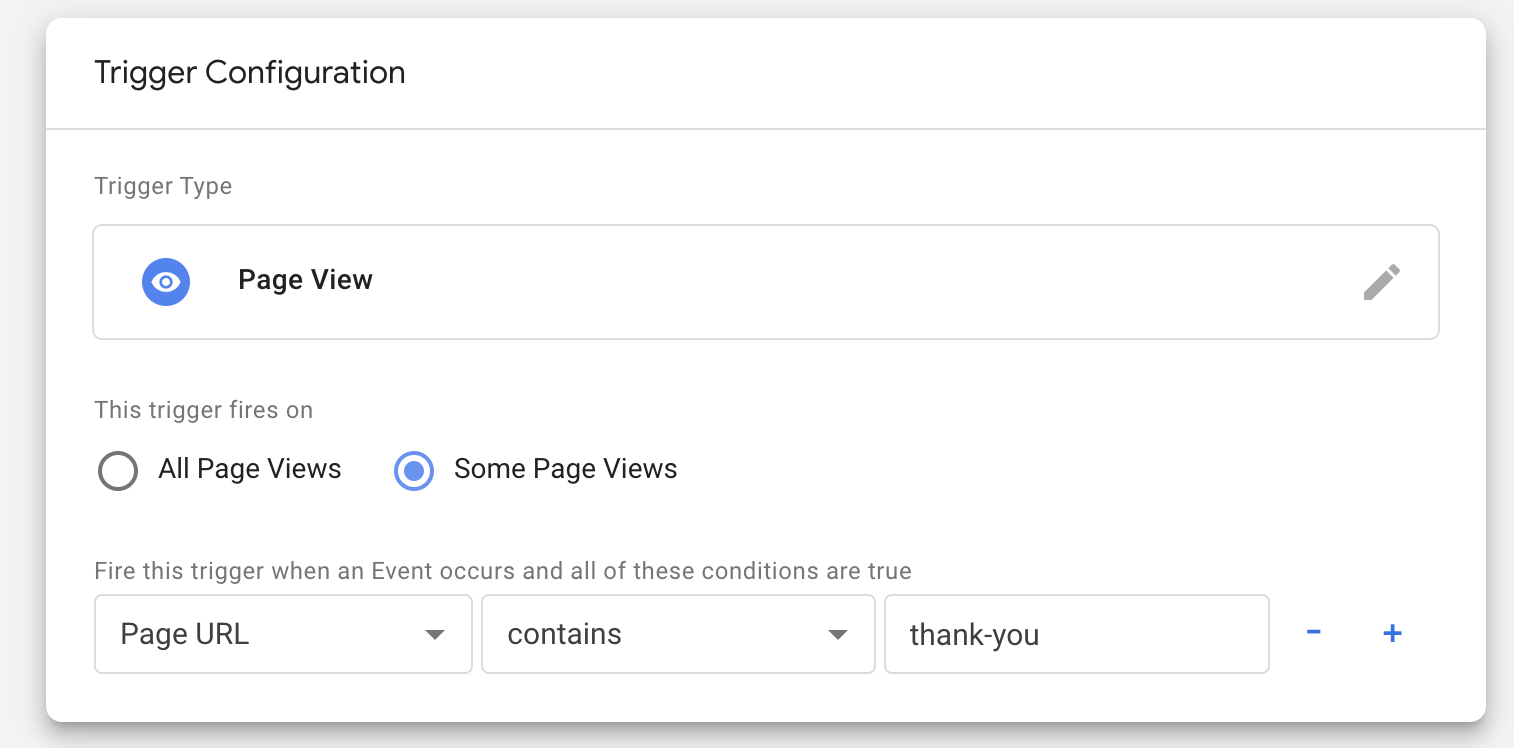
This would fire on all of the below pages, as an example:
sitename.com/thank-you-page.html
sitename.com/new-thank-you-2.html
Click Save to save the trigger. For button-click matches, select the Click - All Elements trigger type:
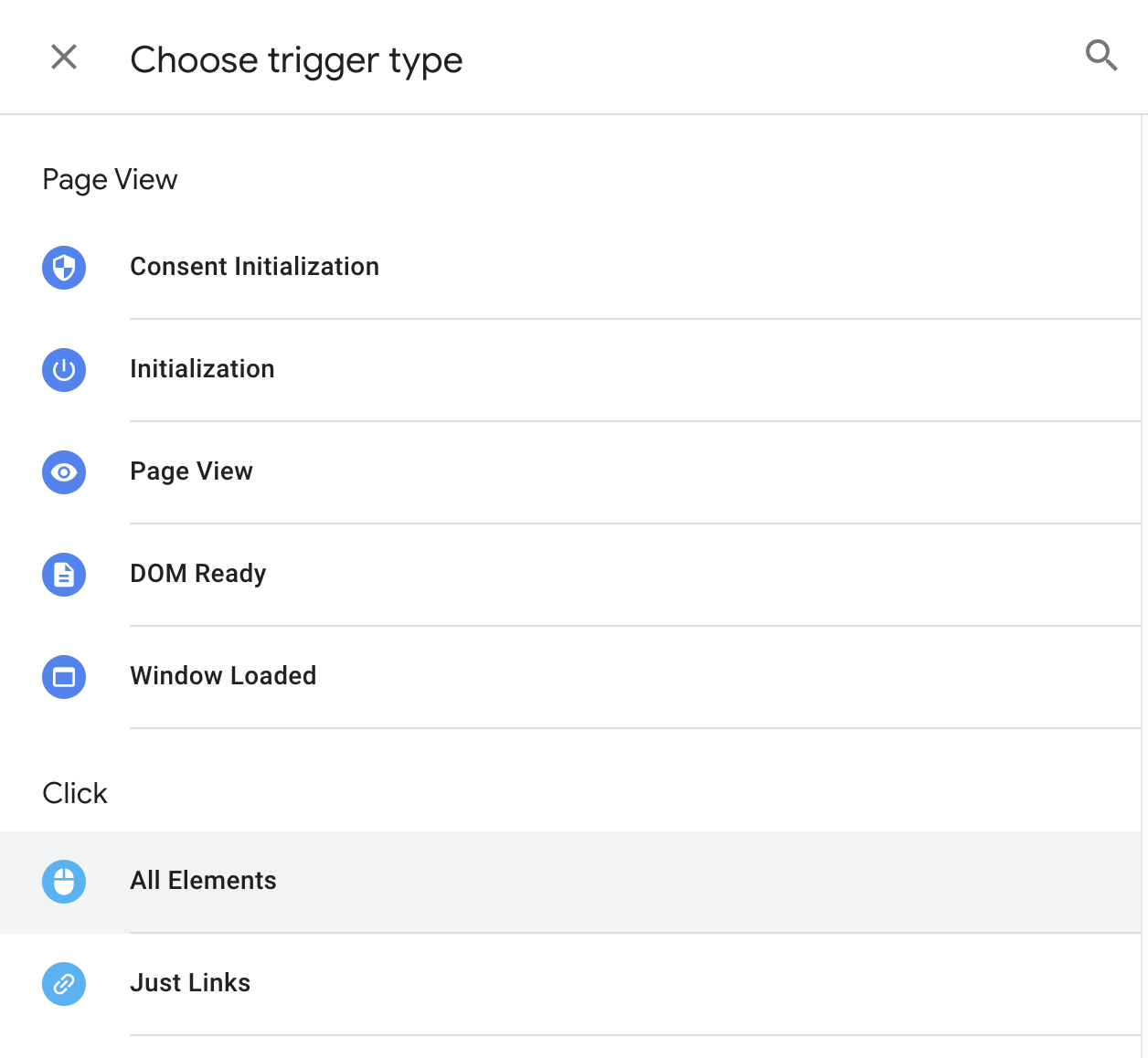
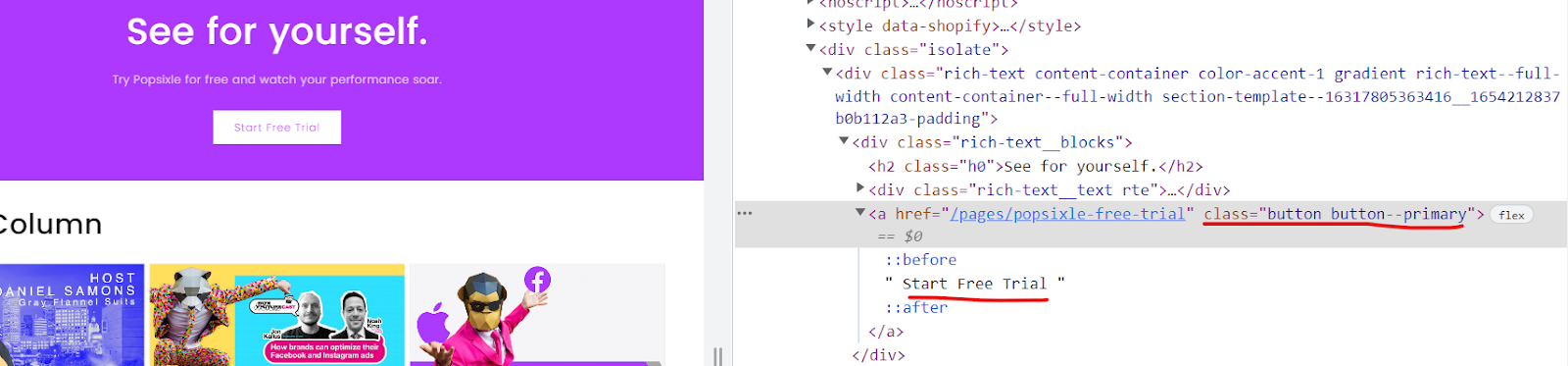
To make a Click trigger fire only for a specific button, inspect its HTML in Chrome (right-click > Inspect) and look for a unique attribute like
id,class,name, or visible text. Use that to define your trigger condition.
EXAMPLES OF COMPLETED TRIGGERS:
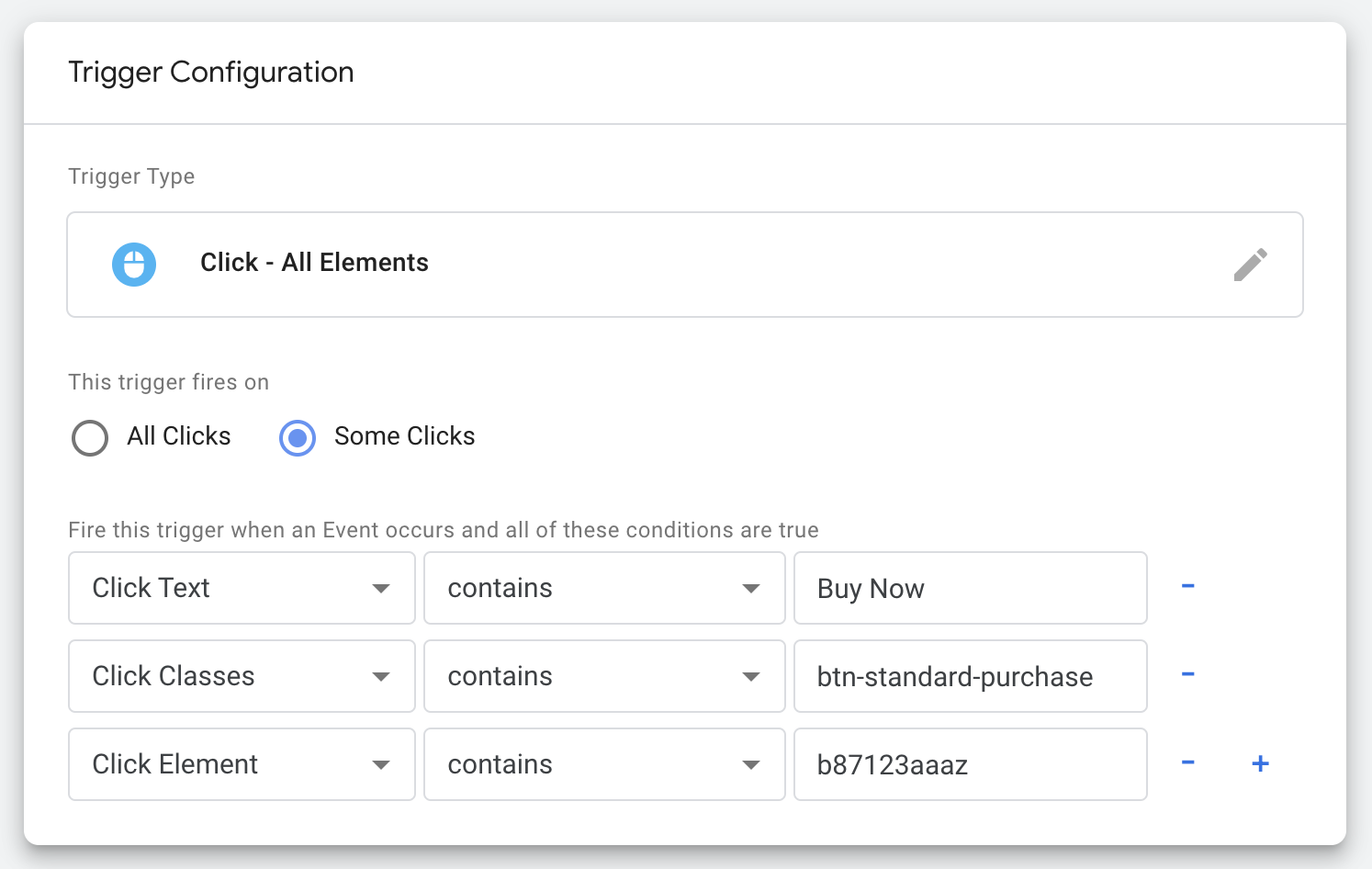
If you have configured both the Custom HTML and the Trigger, you can now save your new Tag. Make sure to repeat this process for each event you want to Tag in GTM.
🚀 Step 4: Publish & Test
Note: If you are concerned about publishing this code with potential errors, please contact someone in your organization who is responsible for your website, for support.
Before publishing:
Click Preview in GTM
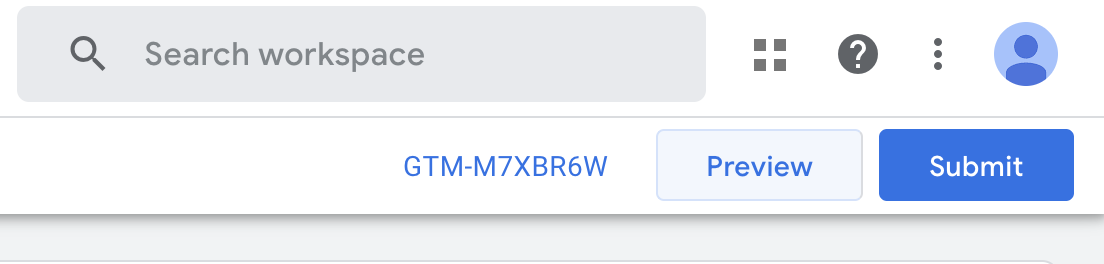
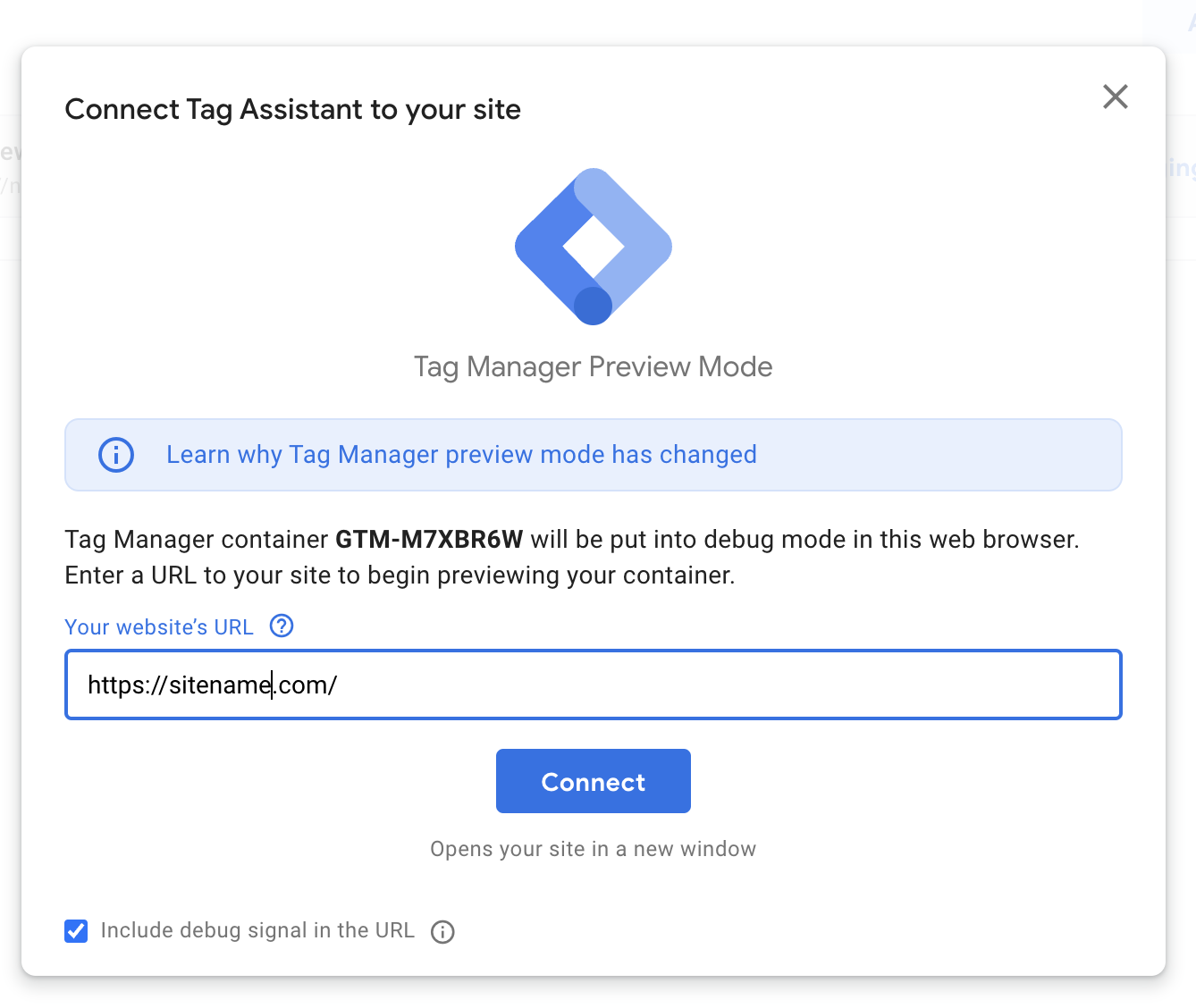
When in Preview mode, you simply enter your URL and GTM will test the trigger settings without publishing to your live site.
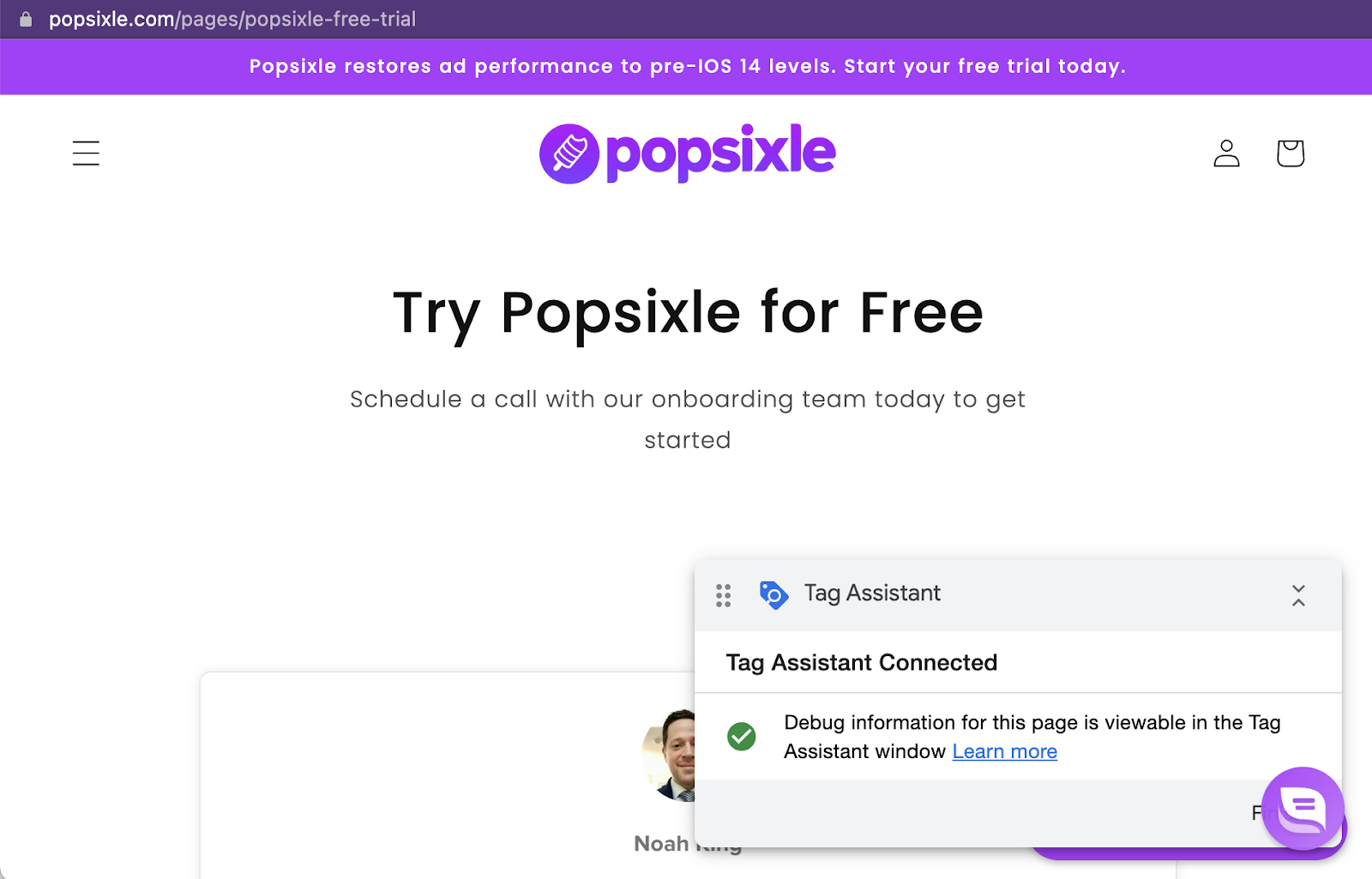
Use this Preview Mode to go through the site and verify that the triggers are firing. Example, make a test purchase, and watch for the Purchase event you made to show up in the GTM preview overlay labeled Tag Assistant.
Check Meta Events Manager to see that the corresponding events are being received by Facebook. There can be a delay of several minutes before the events show up.
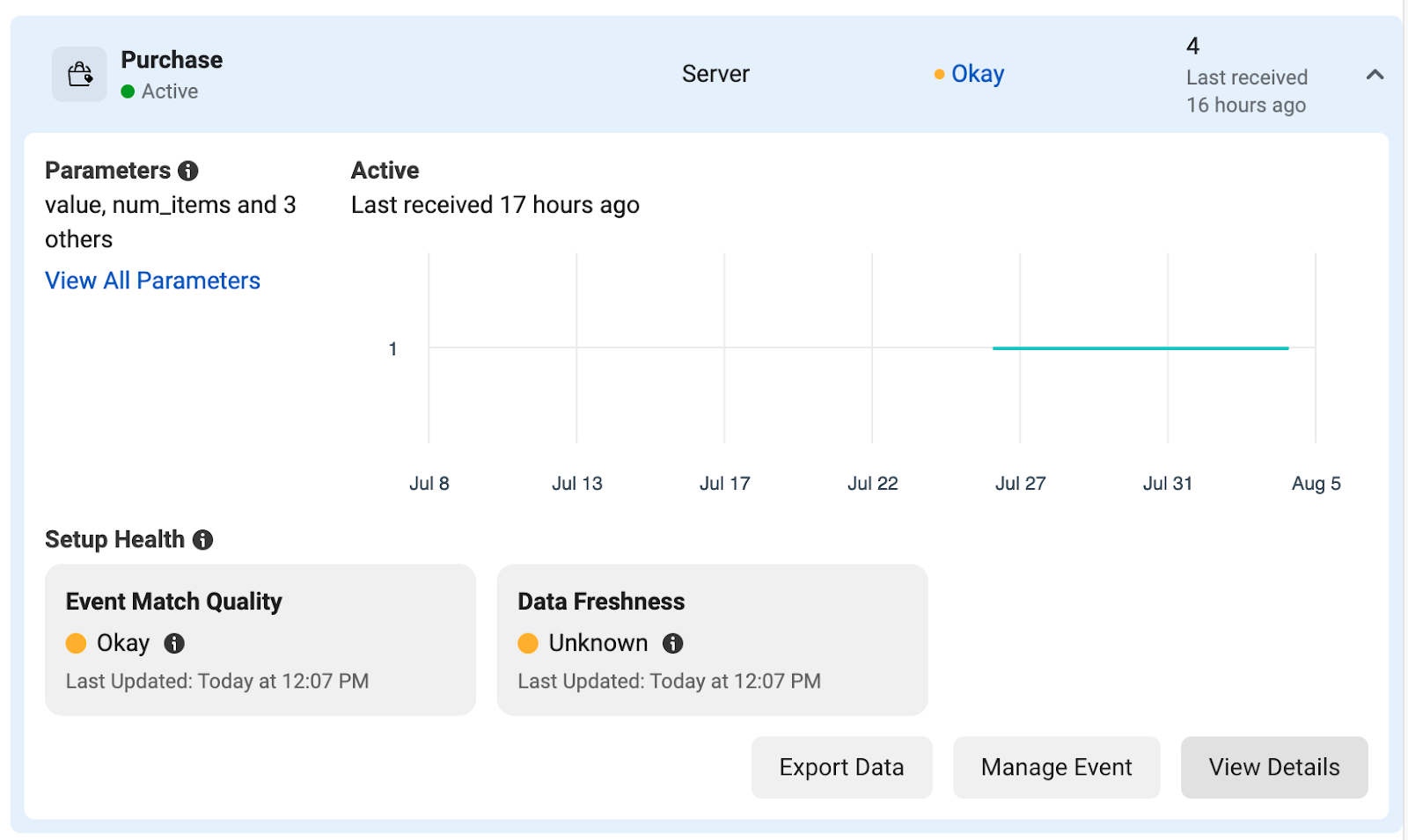
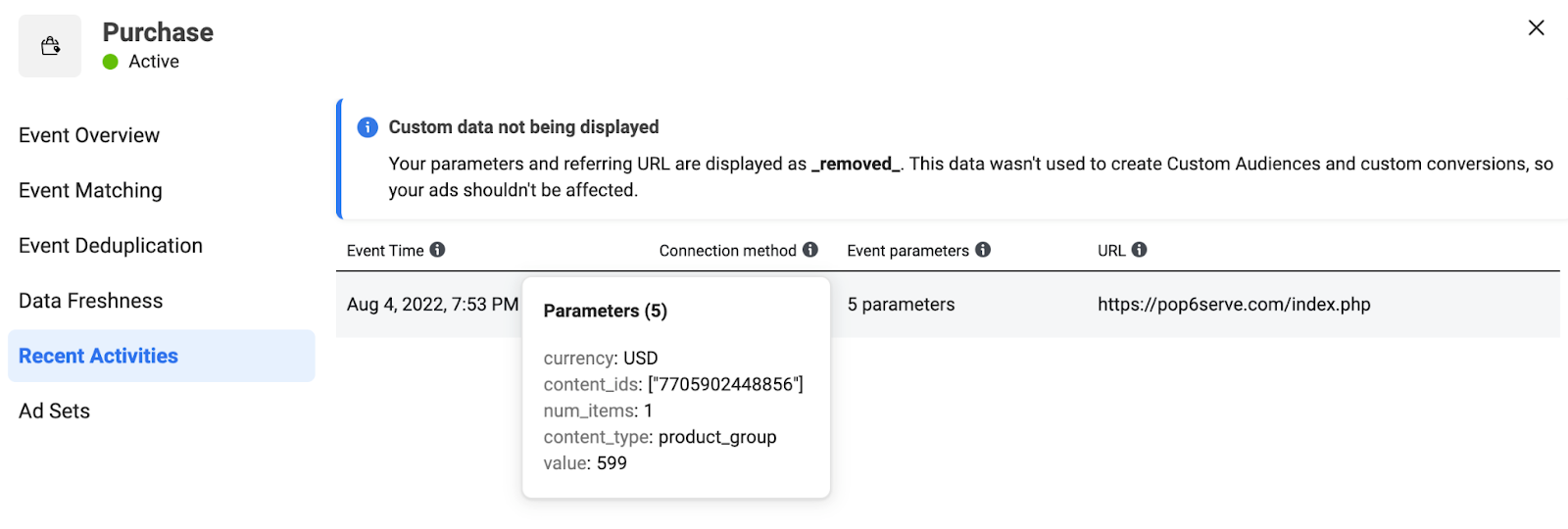
To monitor in Events Manager, select the event, click the View Details button. Once in the View Details section, click Recent Activities to see individual events that have been recently received.
❓FAQ
1. What does this setup do?
It lets you send custom events (like AddToCart or Purchase) to Popsixle using Google Tag Manager (GTM), so Popsixle can track them accurately
2. What code should I use?
Use the updated format:
<script type="text/javascript">
  p6_post_event("AddToCart", 10.00);
</script>
Replace "AddToCart" with your event name and 10.00 with a fixed or dynamic value.
4. How do I choose the right trigger?
Use a unique element (like a button ID or URL fragment) to fire the tag only when the correct action happens. Inspect the button in Chrome to find attributes like id, class, or visible text.
5. What are common mistakes?
Using vague triggers (e.g., “All Clicks”)
Forgetting to test in GTM Preview mode
Not sequencing tags properly (base tag must fire first)
Using unstable selectors like generic classes
6. How do I test if it works?
Use GTM’s Preview mode and Tag Assistant overlay. You can also check Meta Events Manager for incoming events (may take a few minutes to appear).
7. What if I’m not seeing events in Meta?
Double-check:
Your tag fired in GTM Preview
The Popsixle base tag loaded first
The event name and value are correctly formatted
Contact Us
Reach out to the Popsixle via email or through the live chat on our site and a member of our team will get back to you within one business day.