
Meta Pixel/Dataset Access
This article will walk you through the steps needed to provide Popsixle with access to your Meta pixel/dataset
🔑 Why Popsixle Needs Access
To help you track purchases more accurately and set up server-side tracking (CAPI), Popsixle needs permission to:
Generate a CAPI token
View your Pixel/Dataset ID
Access your Test Event Code
✅ Steps to Share Access
Log into Meta Business Manager and go to Business Settings.
In the left menu, click Data Sources > Datasets.
If you don’t see your pixel there, check under Data Sources > Pixels and follow the same steps.
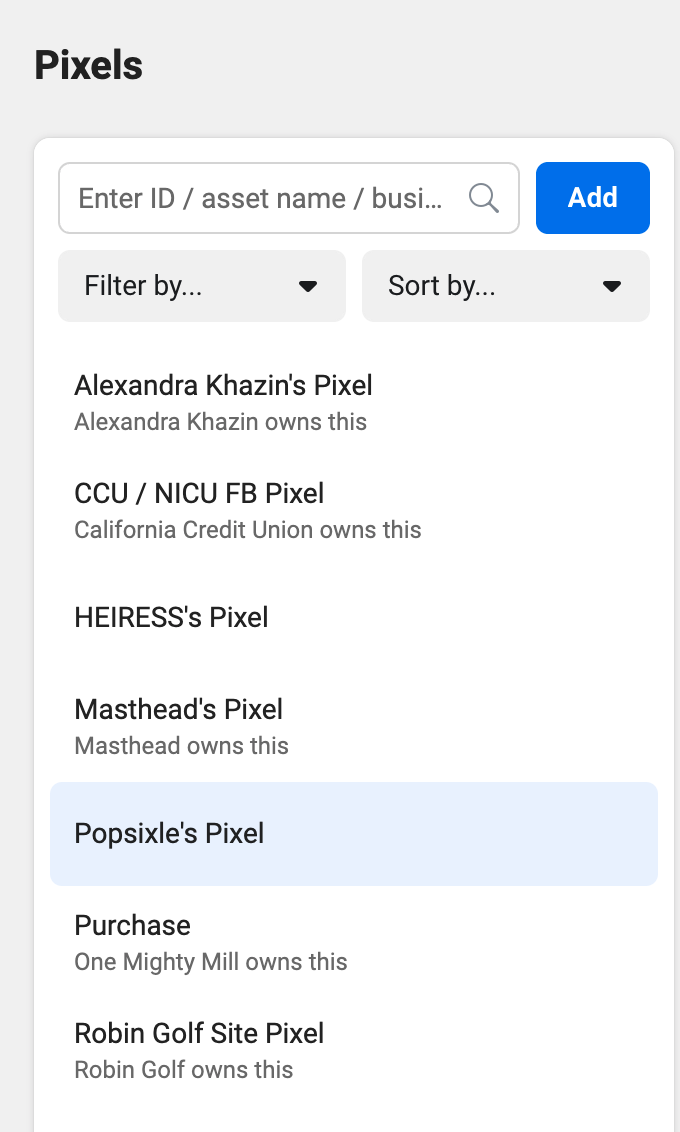
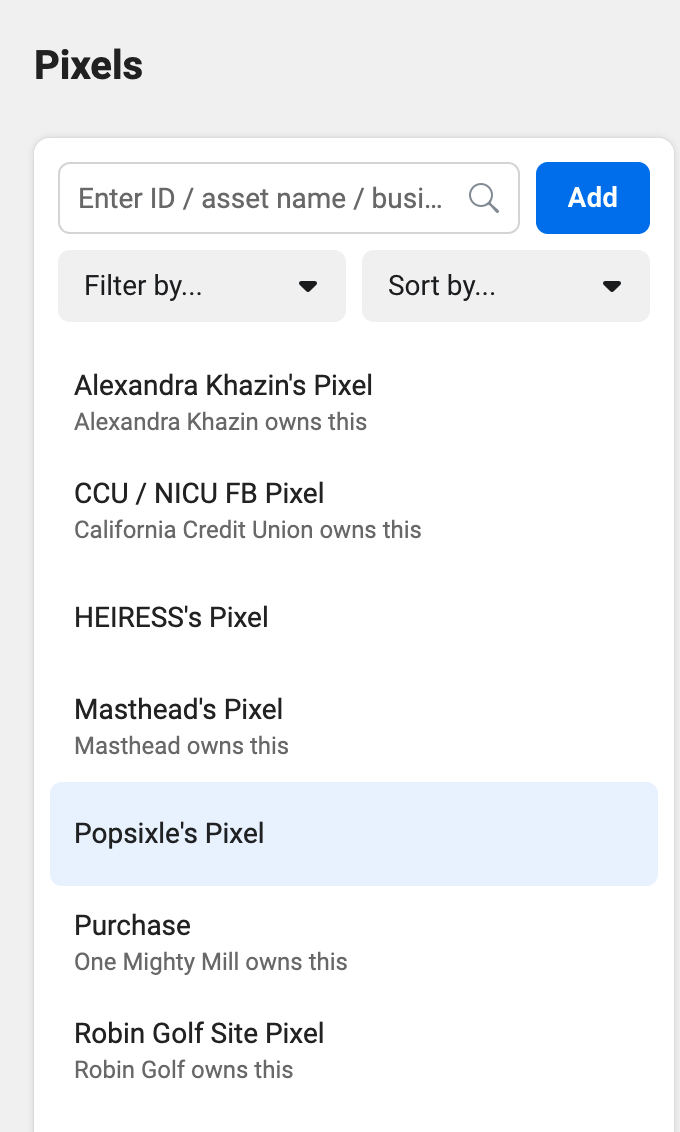
Find and select your active pixel/dataset from a list of all pixels associated with the account:
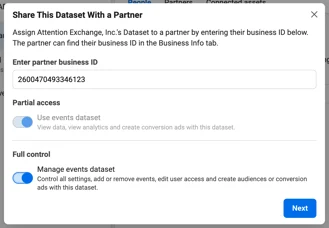
Click Assign Partners
Enter our business id (2600470493346123) and select Manage events dataset.
When asked “How will you work with Popsixle?” select: “Popsixle acts as an agency for my business.”
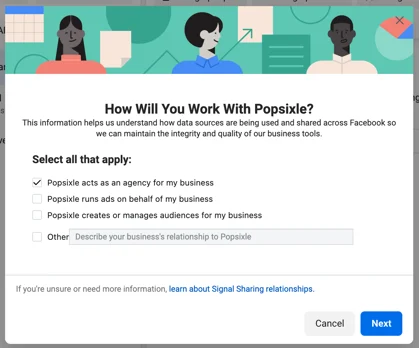
Click I Accept to complete the process.
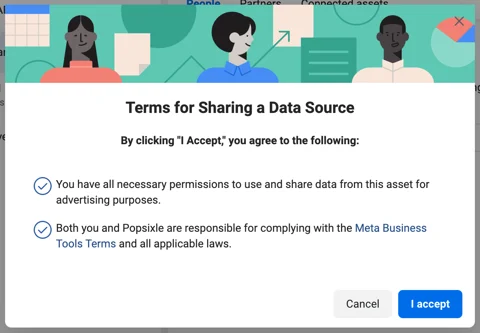
Once access is shared, a Popsixle team member will confirm it’s been received.
If Onboarding User
After installing the Popsixle from Shopify, you’ll need to complete a few steps so Popsixle can start tracking data. this section explains how to connect your Meta Pixel (now called “Dataset”) to Popsixle.
What You’ll Need to Add in the Popsixle App
Pixel/Dataset ID
Conversions API (CAPI) Token
Test Event Code
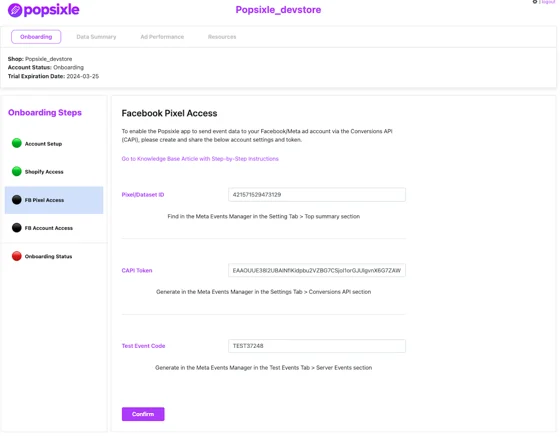
Step-by-Step Instructions
1. Get Your Pixel/Dataset ID
Go to Meta Business Manager > Business Settings
Navigate to Data Sources > Datasets
If you don’t see it there, check under Pixels
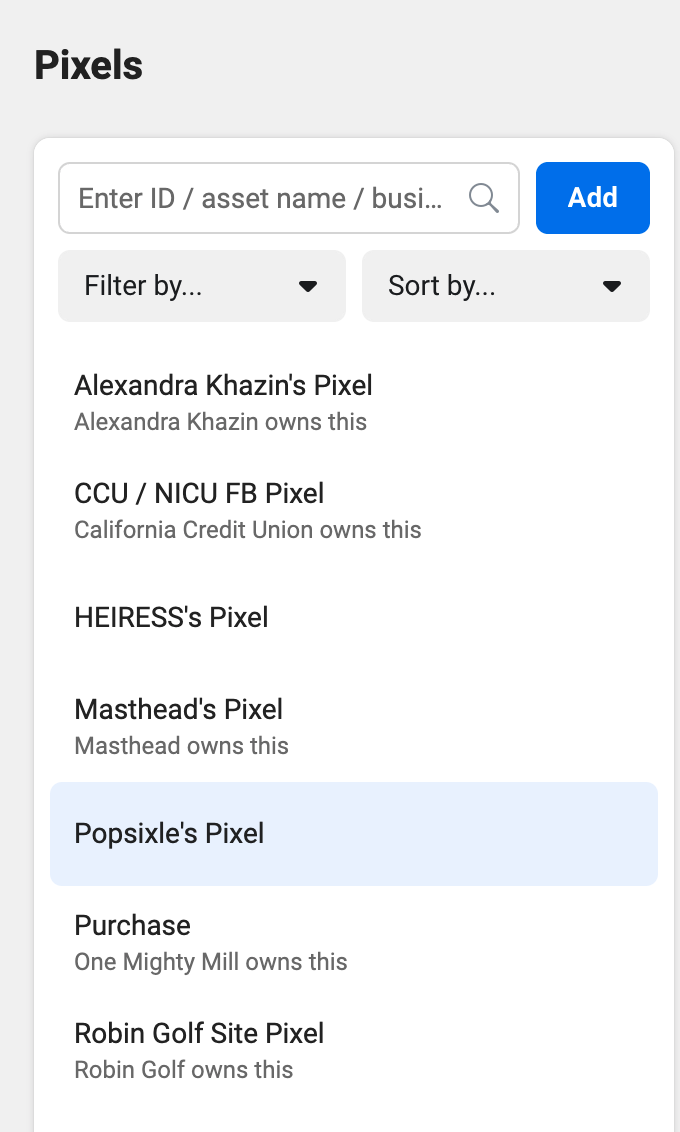
Find your active pixel/dataset
Hover your mouse over the pixel/dataset ID to see the note "Copy to clipboard", then click to copy
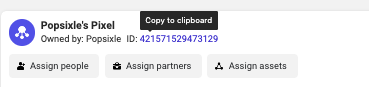
Paste the ID in the Popsixle Shopify app's designated open box for pixel/dataset ID
2. Get Your Pixel/Dataset ID
Open Meta Events Manager
Select your pixel/dataset
Click Settings > scroll to Conversions API
Under “Set up direct integration,” click Generate access token
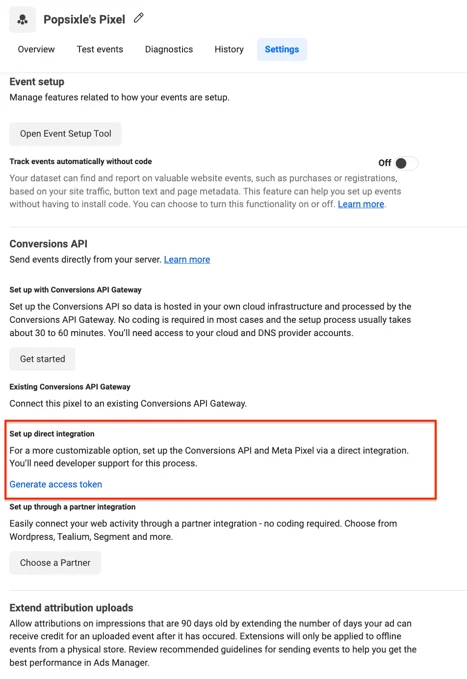
Paste that token code in the Popsixle App's designated open box for CAPI Token.
3. Get Your Pixel/Dataset ID
In Events Manager, click Test Events
Find the code labeled
TESTxxxxxand click CopyPaste it into the Popsixle app
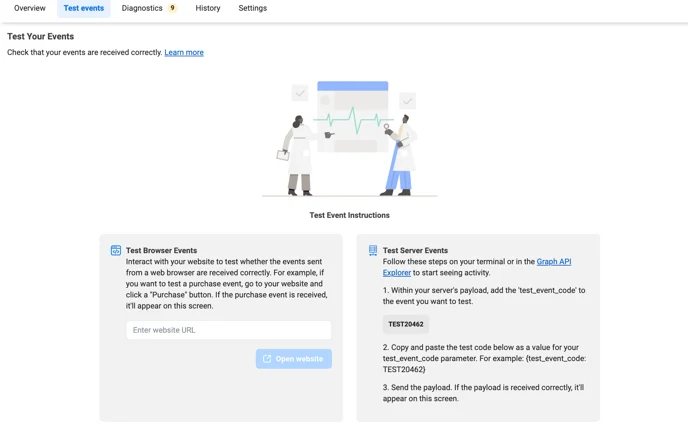
NOTE: If you're using a Pixel instead of a Dataset, the layout may look slightly different—but the code format is the same.
Contact Us
Reach out to the Popsixle via email or through the live chat on our site and a member of our team will get back to you within one business day.