
Complete Setup Guide: Connecting Popsixle with TikTok Ads
Introduction
This guide walks you through the full process of connecting Popsixle with TikTok to ensure accurate advertising data. Follow the steps below to connect your Popsixle account to TikTok so you can optimize ad performance and reporting accuracy.
For Onboarding Users
Follow the steps to connect your TikTok account and start sending conversion data through Popsixle.
Share TikTok Access
Add Popsixle as a Partner (Required First)
Log in to TikTok Business Center, select your ad account, then go to Users > Partners.
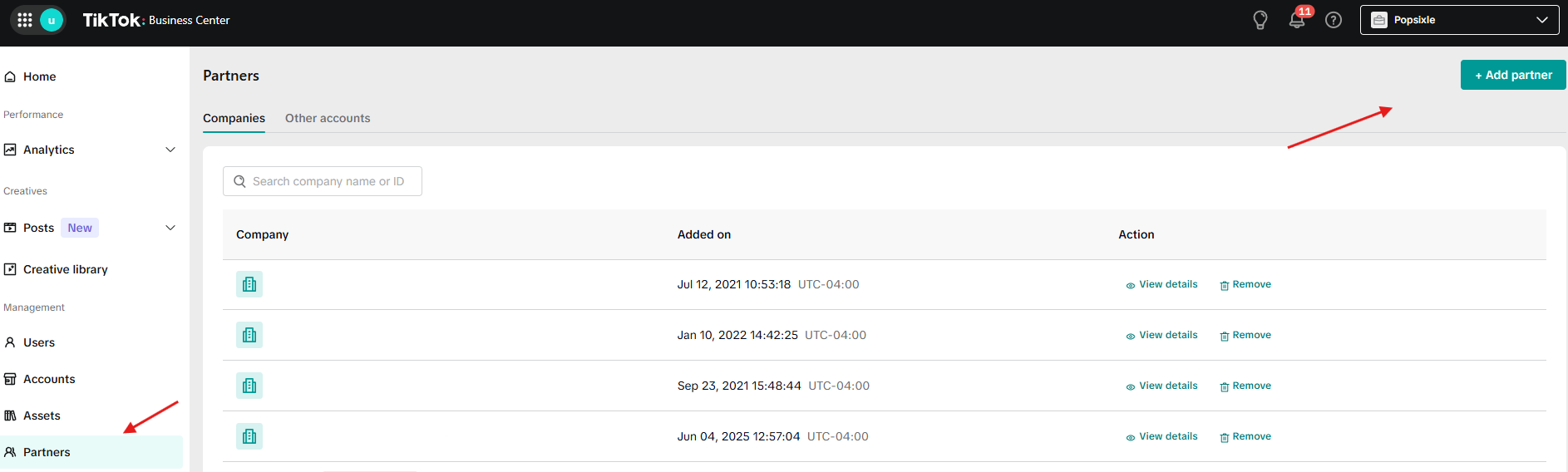
Click Add Partner and enter Popsixle’s Business ID: 7306194182450888705.
Assign Events Manager access with Manage permissions
Save/confirm
Ad Account
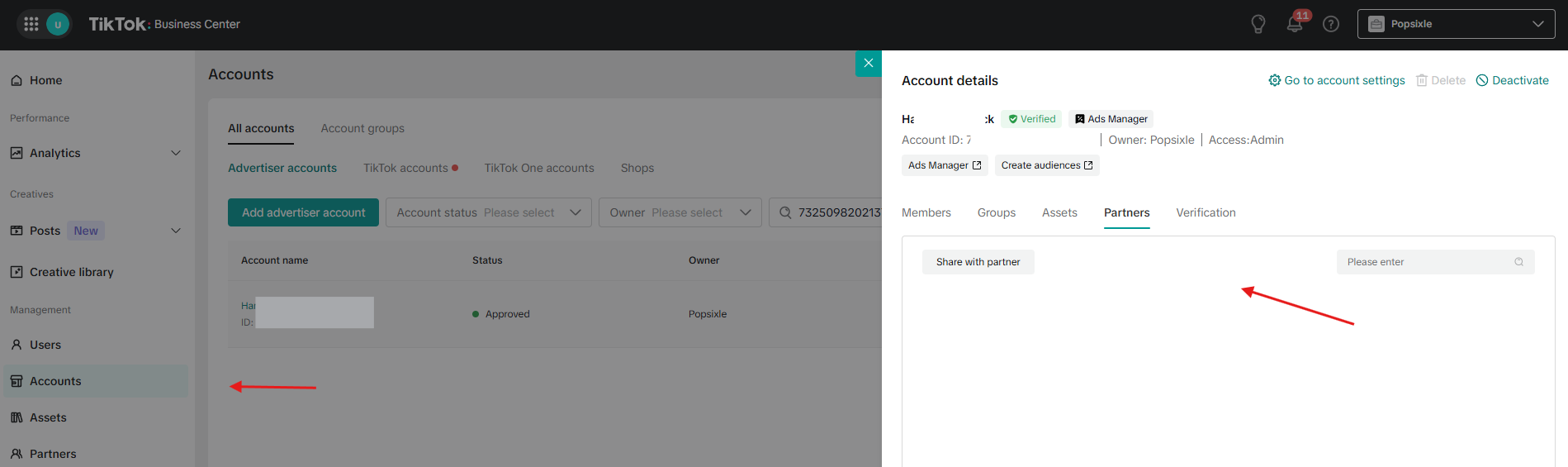
Open TikTok Business Center
Go to Accounts
Open Ad Accounts > Select Ad account
Select the correct ad account
Click Partners > Share with Partner > Popsixle > Analyst or Admin
Grant access and save
Verify Pixel Access (Required)
Important: Sharing your TikTok Business Center with Popsixle does not automatically share your TikTok Pixel.
After granting partner access, please verify that the Pixel itself has also been shared with Popsixle.
To check:
Go to TikTok Business Center → Assets → Pixels
Select your Pixel
Open Partners or Assign Partner
Confirm that the Popsixle Business Center has access to the Pixel
Once completed, Popsixle should be able to see the Pixel under our shared assets.
Troubleshooting

If Popsixle can see your Business Center but cannot locate your Pixel, the most common cause is that the Pixel asset was not shared separately. In this case, please verify the Pixel sharing permissions and send a screenshot of the Pixel's partner access settings to our team.
Locating your TikTok Credentials
Once Popsixle has been added as a partner, return to the onboarding flow and enter the following:
TikTok Pixel ID
Access Token
Server Events Test Code
Note: To locate your TikTok credentials, see guide below
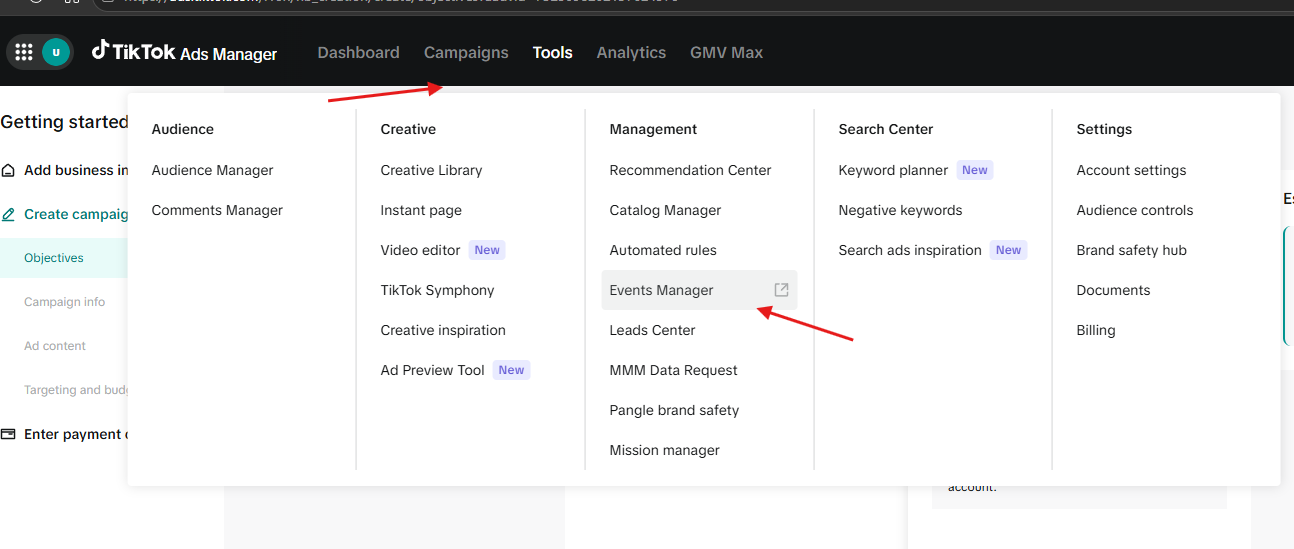
Log into TikTok Ads Manager.
Navigate to:
Tools
→ Events
→ Events Manager
Open Your Existing Web Data Source
Inside Events Manager, click Data Sources
Copy the Pixel ID from the top of the page.
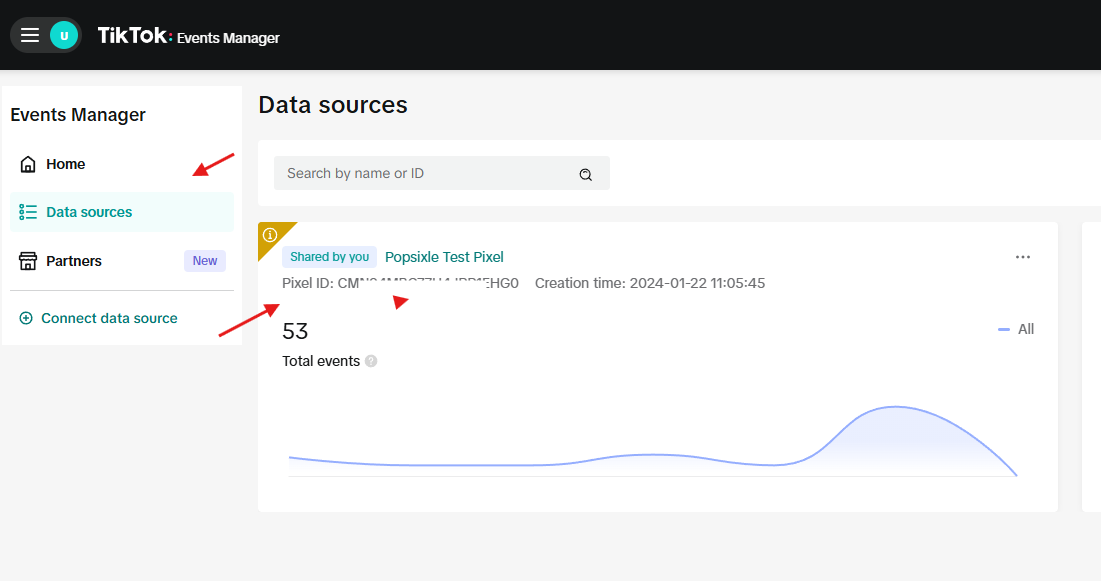
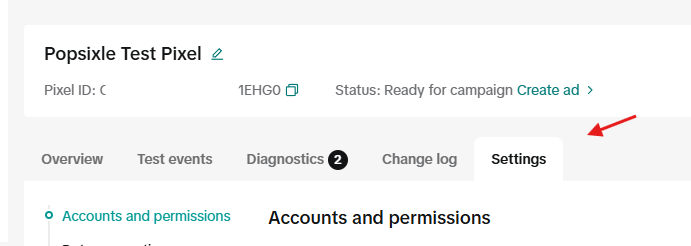
Go to the Pixel > Settings tab and create an Access Token.
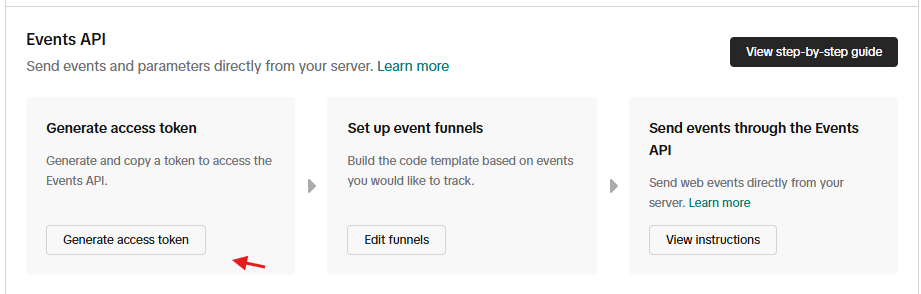
Locate Events API and generate or copy the existing Access Token
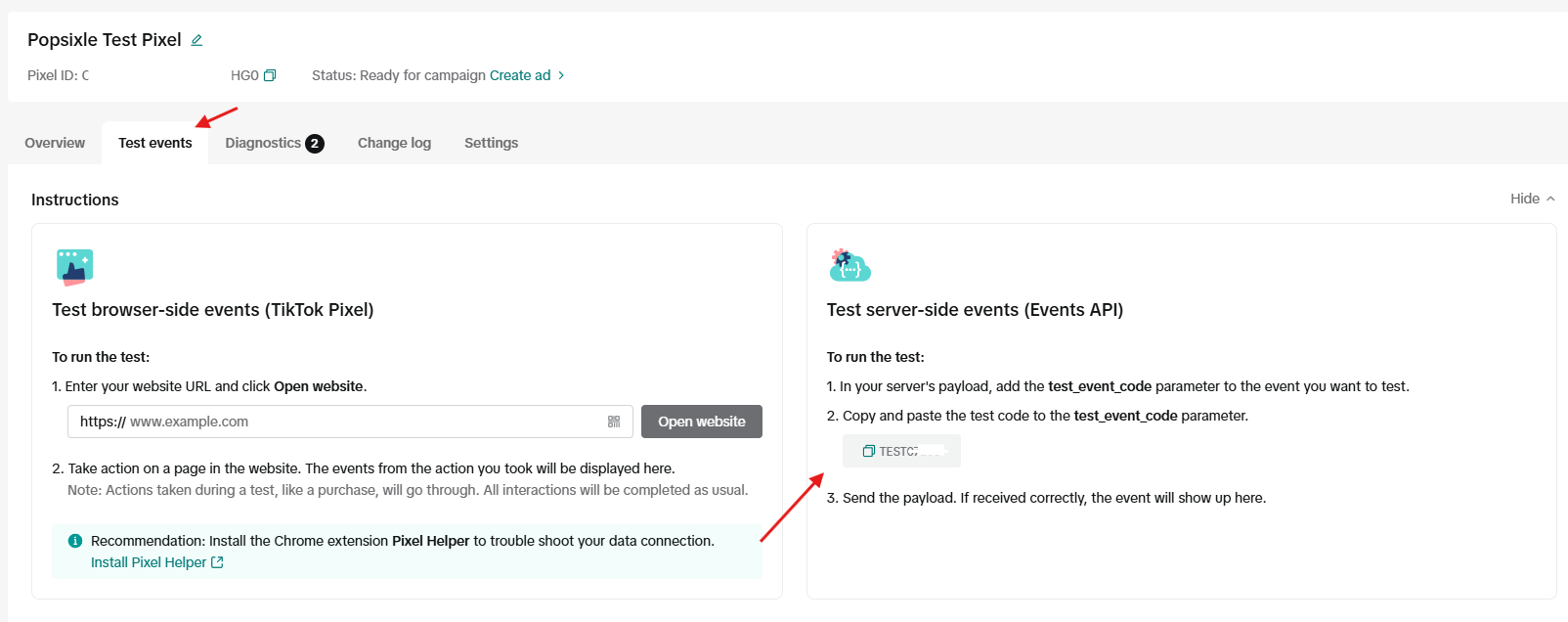
Go to the Test Events tab and copy the Server Events Test Code.
Paste all three into Popsixle to complete the connection.
Test Connection
Click Test TikTok Connection
Once successful, proceed to complete setup
For Active Trial/Current Subscriber
You can connect TikTok Ads from two places in your Popsixle dashboard:
Home Page: Go to Channels then click TikTok
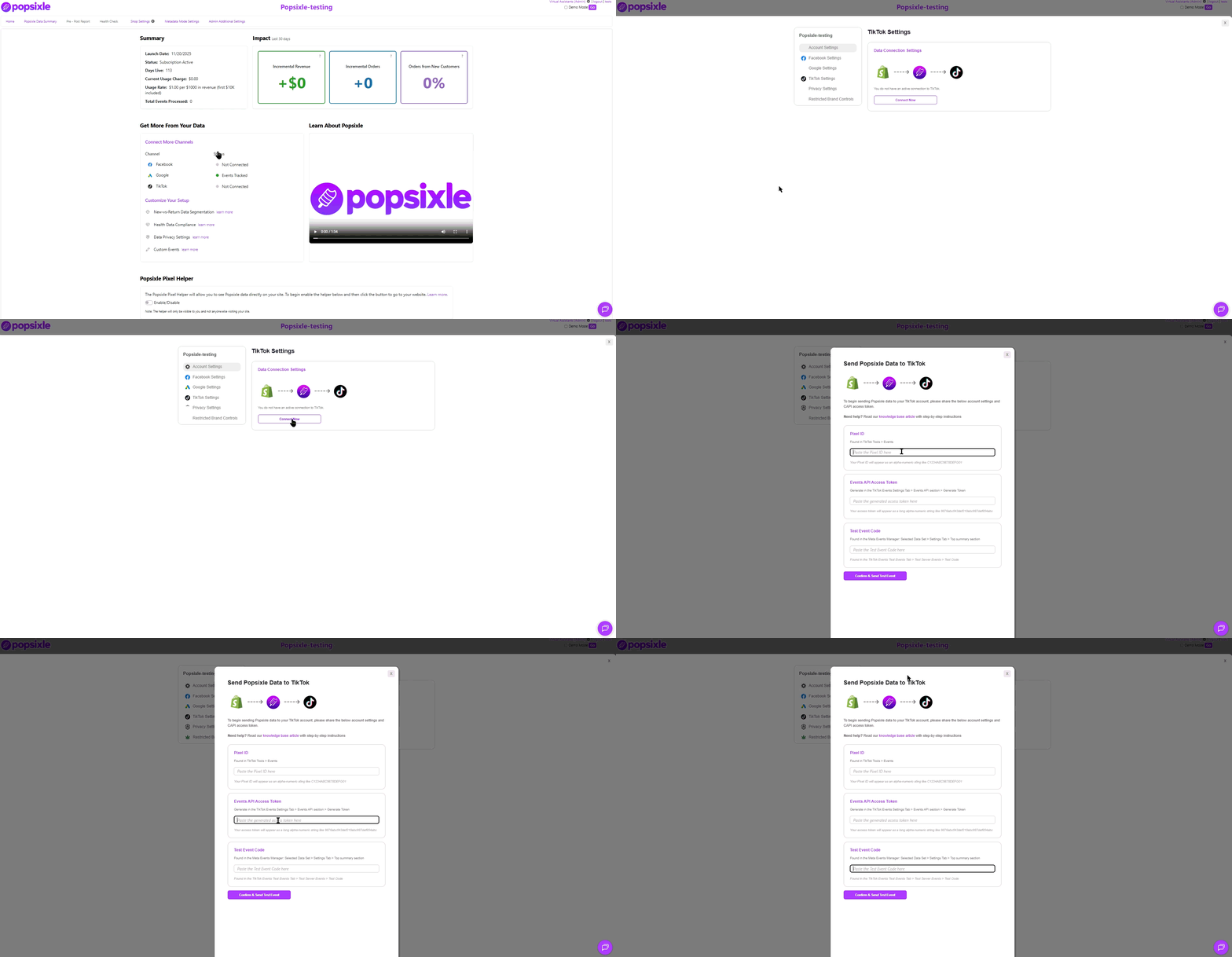
Shop Settings: Navigate to TikTok Settings.
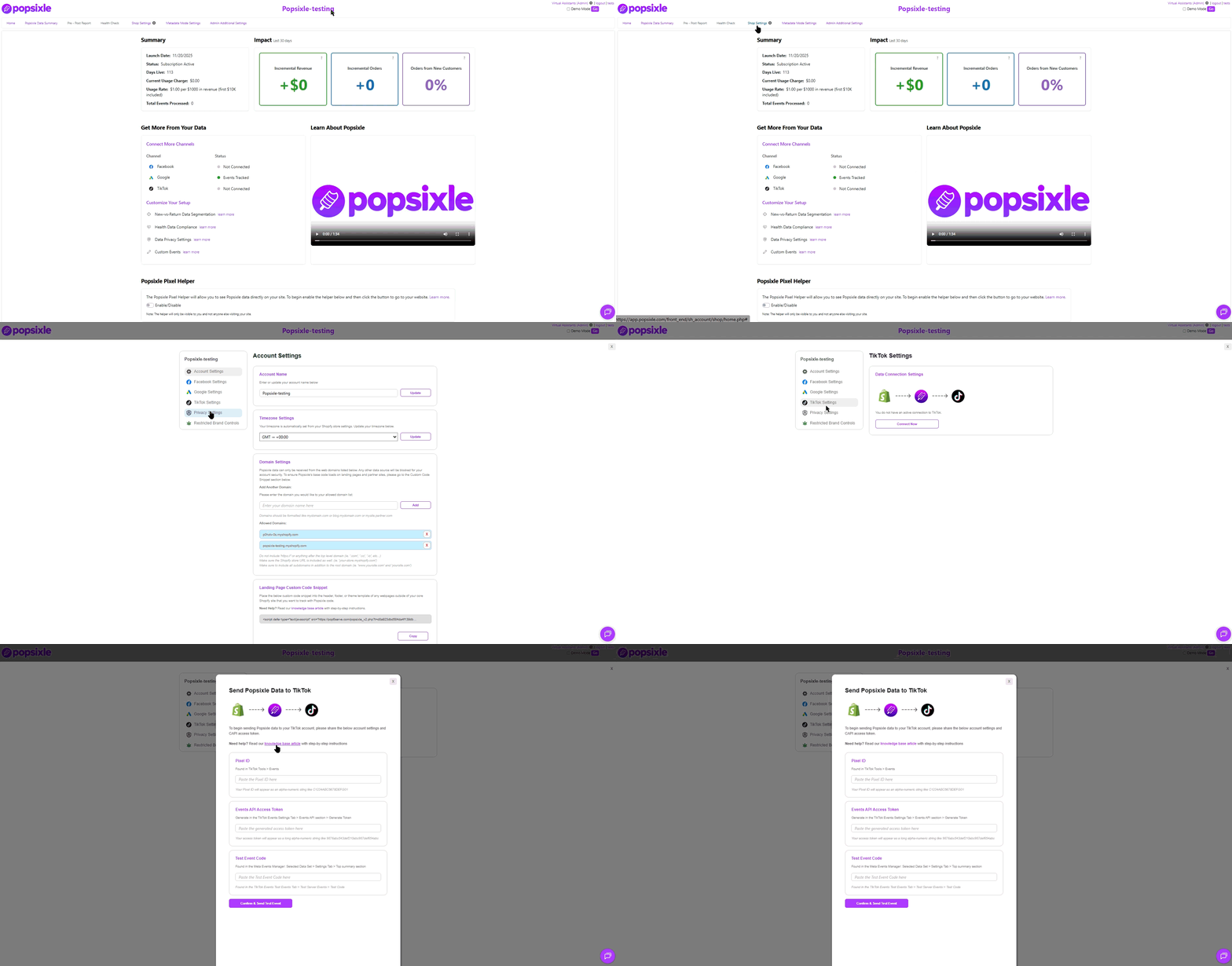
Enter the following details from your TikTok account:
Pixel ID
Events API Access Token
Server Events Test Code
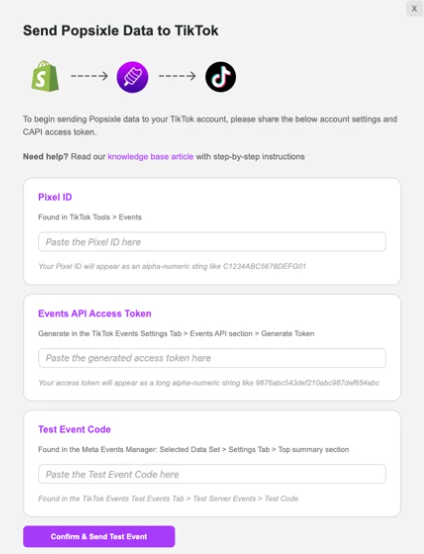
Click Confirm & Send Test Event.
If successful, Popsixle will begin sending server events to TikTok.
If the test fails, double-check your entries and try again. If you still need help, contact us at success@popsixle.com.
Turning Off TikTok-Shopify Data Sharing and Browser Events
For the best reporting accuracy, you must turn off all data sharing in Shopify according to the specific steps in our guide: How to turn off the Shopify-TikTok CAPI connection for Popsixle
Alternative option: If you don’t want to fully disable Shopify data sharing, switch Shopify’s TikTok sharing setting to Conservative. Keep Popsixle browser events turned off in this case to avoid duplication.
Need Help?
Reach out to the Popsixle via email or through the live chat on our site and a member of our team will get back to you within one business day. /