
Complete Setup Guide: Connecting Popsixle with Google for Accurate Ad Data
Overview
Popsixle allows you to send high-quality, privacy-first 1st party data directly to Google Ads. By connecting Popsixle to your Google Ads account, you’ll improve data accuracy, reduce reliance on Google’s data modeling, and gain deeper insight into how your campaigns are truly performing.
This guide covers:
How to connect your Google Ads account to Popsixle
Where to see Popsixle data inside Google Ads Manager
How to interpret the data (Primary vs Secondary conversions)
Best practices for using Popsixle’s connection to improve performance
Step 1: Important Notes Before Connecting
Permissions: Make sure you have "Standard" level access for the Google Ads account you are connecting.
Low-risk setup: When you first connect, Popsixle will create a new purchase conversion action that defaults to Secondary. This means it will not influence ad optimization right away — it’s only used for reporting.
Optimization later: After ~2 weeks (or at least 20–30 conversions), you can decide to switch this conversion to Primary, which allows Google to use it for bidding.
During testing, Popsixle’s Google Ads connection showed a 7.5%–15% increase in tracked events compared to existing connections.
Step 2: How to Connect Popsixle to Google Ads
For Onboarding Users
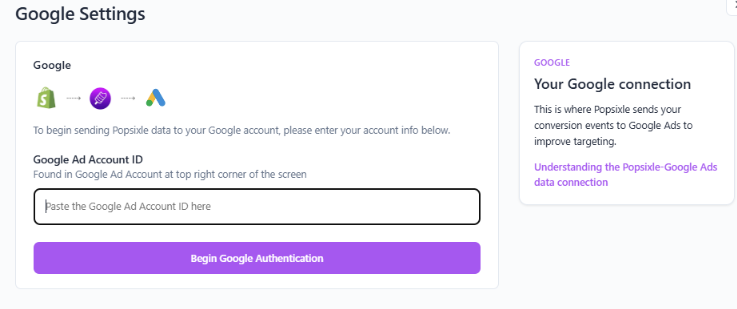
Locate Your Google Ads Account ID
In Google Ads, click the Settings gear icon.
Go to Account Settings.
Copy your Customer ID (format:
123-456-7890).Paste the copied ID into the Google Ads Account ID field in Popsixle.
Authenticate with Google
Click Begin Google Authentication
Log in using the Google account that manages your Ads.
Select the correct Ads account from the list presented.
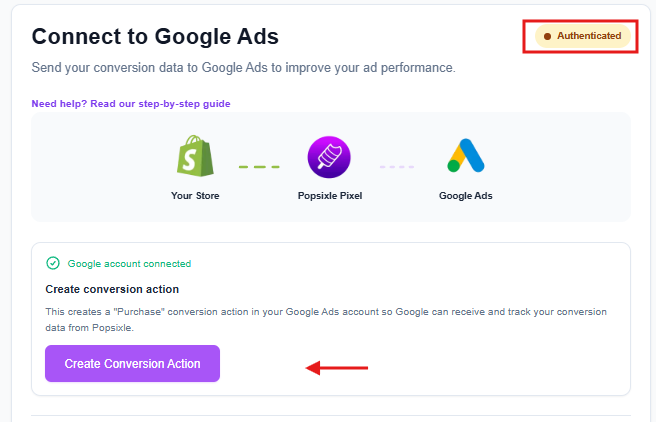
Create Your Conversion Action
You should see the status update to Authenticated.
Press “Create Conversion Action”
If you see Success! it means the conversion action has been created correctly.
Your store is now fully connected, and Google Ads can start receiving conversion data.
For Active Trial/Subscribed Users
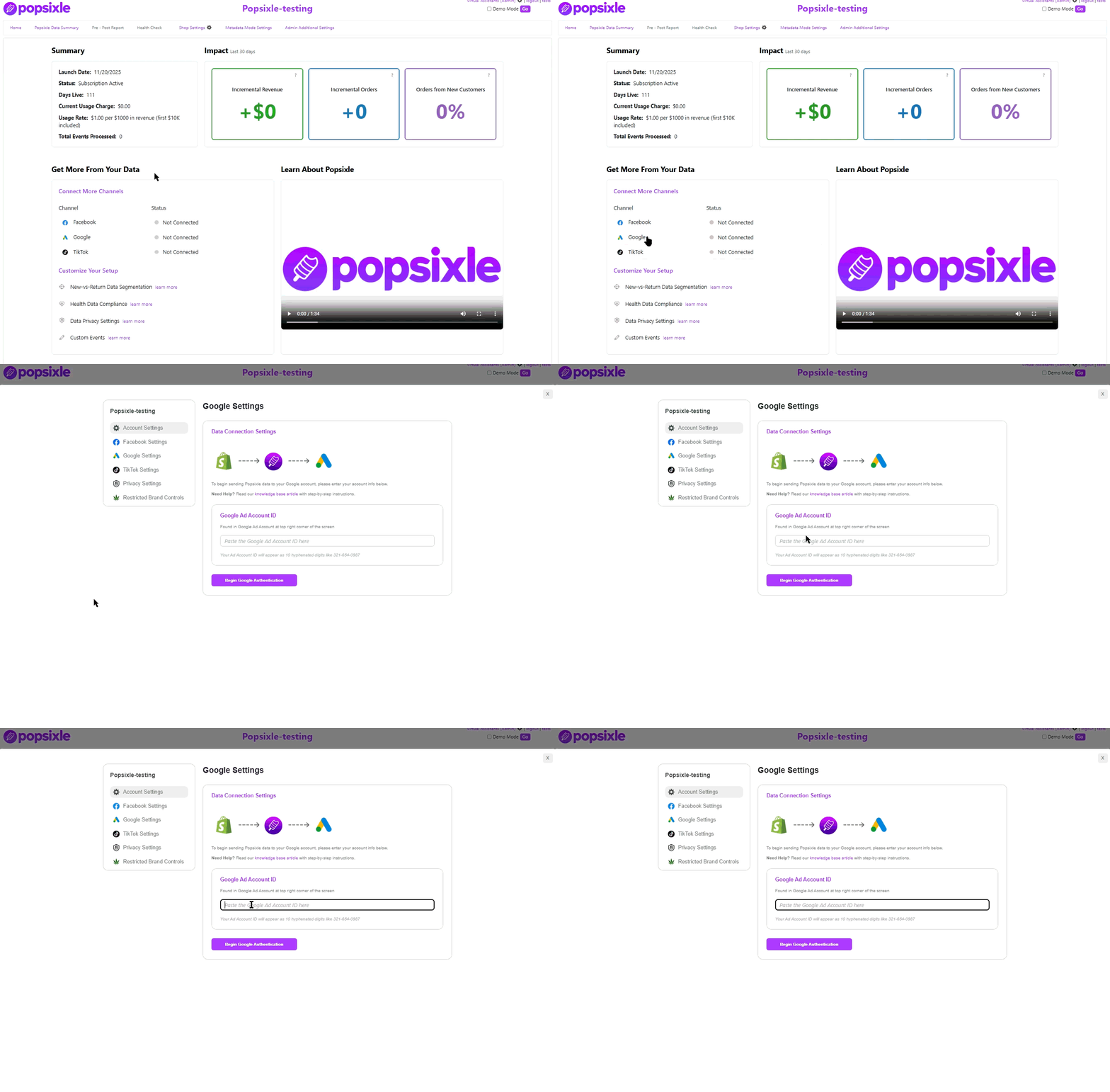
You can connect Google Ads from two places in your Popsixle dashboard:
Home Page: Go to Channels then click Connect Now next to Google.
Shop Settings: Navigate to Google Settings.
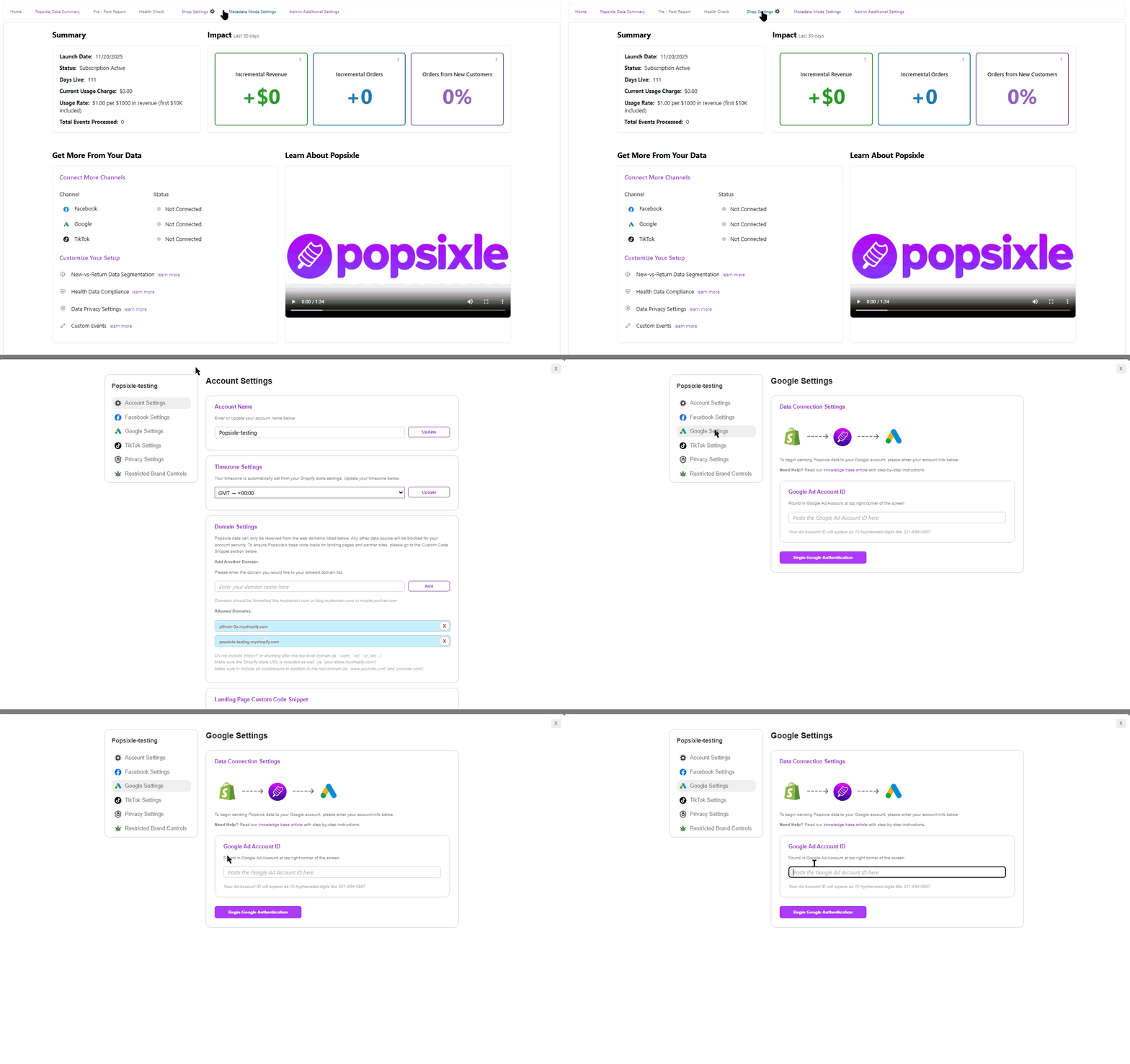
Steps to connect:
Enter your Google Ads Account ID in the open field.
Click Begin Google Authentication.
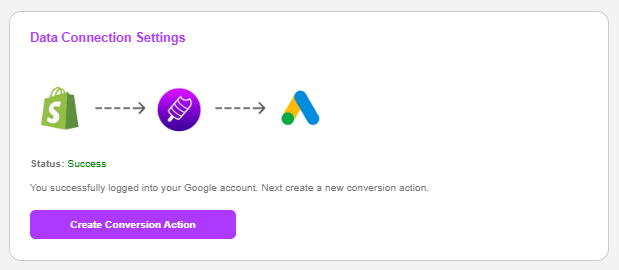
If you see Success, Press “Create Conversion Action” This will automatically set up a Purchase conversion action in your Google Ads account.
Popsixle Pixel will then begin sending purchase data to Google Ads for tracking and optimization.
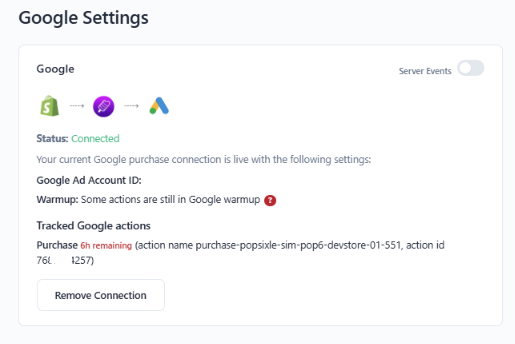
Wait 6 hours before toggling on Google Server Events. (Google won’t accept events until the conversion action is fully registered. Turning them on too early may cause API errors.)
Step 3: Confirming the Setup in Google Ads
To confirm that Popsixle created the new conversion action:
Log in at ads.google.com.
Go to Goals → Summary.
Look in the Purchase grid. You should see a conversion action named:
purchase-popsixle-yourstorenameIt will show as Secondary under Action optimization.
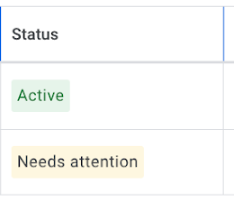
If you see a “Needs Action” flag in the Status column, reach out to success@popsixle.com so our team can help.
Step 4: Where to See Popsixle Data in Google Ads Manager
Inside your Google Ads account, go to:
Goals → Summary → Purchase Conversion Table
Here you’ll see:
Status column – shows if the connection is Active and provides diagnostics.
All conv. column – total conversions recognized by Popsixle (compare with other connections).
Action optimization column – whether each conversion is Primary or Secondary.
Step 5: Measuring Data Quality
Hover over “Active” in the Status column.
Click “View diagnostics” to open Google’s diagnostic screen.
You’ll see:
Total number of events Popsixle has sent
Google’s quality rating of that data
✅ Popsixle sends server-side data tied to Google Click IDs (GCLIDs), which ensures a very high success rating.
Note: You won’t see anything about enhanced conversions because Popsixle’s server-side connection already includes 1st party data — making every purchase event “enhanced” by default.
Step 6: How Popsixle Sends Data to Google Ads
Popsixle detects when someone clicks a Google ad.
The click is anonymized and stored in Popsixle’s data warehouse.
If that user later purchases (within your attribution window), Popsixle links the purchase to the click and sends the conversion to Google.
This provides more accurate reporting than browser-based pixels or GA4 alone, which often rely on modeled data.
Note: When you first connect Google, Popsixle is not able to send data for 6 hours after creating a new conversion action. After that period, event data will populate on the Popsixle Data Summary once there’s been at least one Google Ads-attributed purchase
Step 7: Primary vs Secondary Conversion Actions
In your conversion table, you’ll see:
Primary actions – used by Google for bidding optimization.
Secondary actions – tracked for reporting only.
When Popsixle first creates your conversion, it’s Secondary.
Best practice:
Let the Popsixle connection run until you have 20–30 conversions (or ~2 weeks).
Then decide if you want to switch it to Primary to let Google optimize with Popsixle data.
Even if you leave it as Secondary, Popsixle still provides valuable data for comparison and accuracy checks.
Step 8: Putting It All Together
Popsixle’s Google Ads connection is designed to give you:
Cleaner, higher-quality conversion data
Less reliance on Google’s modeling
Improved optimization potential when set to Primary
Use Popsixle alongside your existing connections (pixel, GA4, etc.) for at least a week, then compare performance. Most brands see Popsixle capture more conversions within 7–10 days. Over longer windows (30–90 days), Google’s models may inflate numbers, but Popsixle provides the most trustworthy, 1st party source of truth.
Conclusion
The Popsixle–Google Ads integration is simple to set up, low-risk to test, and powerful once optimized. Start with Popsixle as a Secondary conversion, monitor results, and then decide whether to promote it to Primary for campaign optimization.
For additional support or troubleshooting, contact us at success@popsixle.com.
✅ With Popsixle, you’ll give Google Ads the clean, privacy-first data it needs to drive better performance.
Contact Us
Have questions or need help? Reach out via live chat (during business hours) or email us at success@popsixle.com.