
How to Turn Off Shopify–TikTok CAPI Connection for Popsixle
Follow this guide to properly disable Shopify’s TikTok data sharing and avoid duplicate tracking when using Popsixle.
Why turn off the Shopify TikTok CAPI connection?
Leaving the Shopify TikTok connection enabled can lead to:
Duplicate events being sent to TikTok
Inflated conversion reporting
TikTok taking credit for purchases it didn’t drive
Disabling this ensures Popsixle remains the single source of truth for your TikTok event tracking.
Overview of the solution
To properly turn off Shopify’s TikTok CAPI connection, you will:
Disconnect your current TikTok pixel from Shopify
Replace it with a “dummy” pixel
Keep Popsixle as your active tracking source
This allows:
Popsixle to continue sending server-side events
Shopify to stop sending conflicting data
Step 1: Create a new TikTok pixel (“dummy pixel”)
Go to TikTok Events Manager:
https://ads.tiktok.com → Tools → EventsClick “Connect New Data Source”
Select Web and set it up as a standard browser pixel
Name the pixel something like:
Shopify-Browser-Events-Only
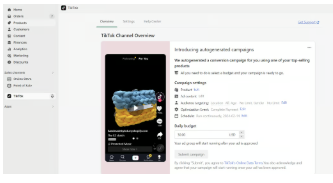
Step 2: Update Shopify TikTok settings
Go to your Shopify Admin
Navigate to:
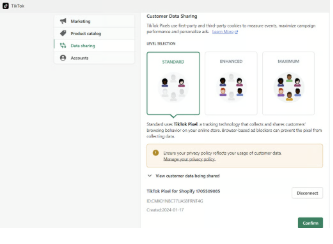
Sales Channels → TikTok → Settings → Data SharingLocate your current connected pixel
Disconnect the existing pixel (format:
CN1234567ABCDEF)Connect the new “dummy” pixel you created
Note:
The dummy pixel can be set to any data sharing level (Standard, Enhanced, or Maximum), since it won’t be used for active campaign tracking.
As final step, follow up with our team to confirm the TikTok Data Sharing has been turned off according to the steps above .
Contact Us
Have questions or concerns? Reach out to the Popsixle via email or through the live chat on our site and a member of our team will get back to you within one business day.